Inventory is a feature supported for Decorator Pro producing volume in house or through the Network for those on the Discount Tier 1 or Discount Tier 2 plan.
Purchase orders (PO) are how inventory is managed. This is something that a Sales Portal can handle, although it is recommended that inventory is managed by your account who's store is offering 3PL item(s).
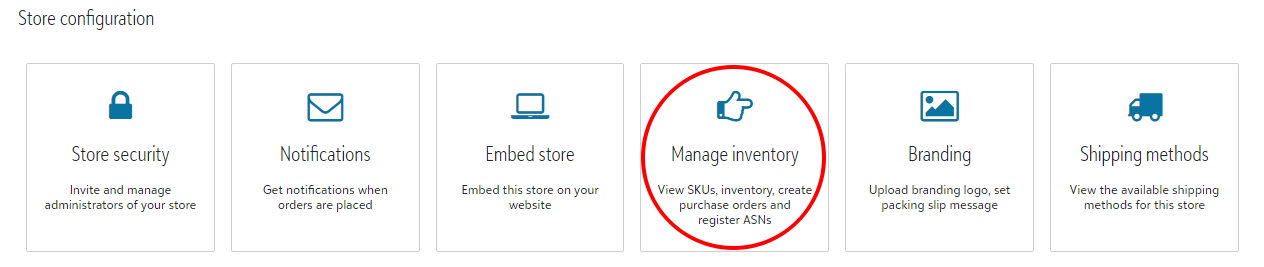
You are able to access inventory from the account's store homepage. From there you will navigate to Manage inventory under Store configuration.
Once within Manage inventory, you will select the Purchase orders tile and +Add located to the far left of the header bar.
To create a PO, you will need to first set up your 3PL SKUs within the store's account. If you have not already done so, you are able to follow that process here.
When creating a new PO, you will be prompted to list the supplier, as well as the desired quantities for each SKU before selecting Save.

After the PO has been submitted, the item(s) will reflect under the SKUs tile within Manage inventory.
The PO will then be received by the warehouse team and added to available inventory. Learn more about that process here.