You are able to create an application to connect to Fulfill Engine within the Shopify Partner and Dev Dashboards using a Client ID + Secret.
To build a custom app directly within the merchant's environment you must be the Shopify store owner.
For Seller Essential - if you require further assistance with this process, you will need to reach out to our Customer Success Team at info@fulfillengine.com and add us as a Staff Member within Shopify.
For Seller Pro - you are able to assist your account if the Shopify owner adds you as a Staff Member within Shopify.
The Staff Member must be granted the following specific permissions:
- Orders: This allows you to connect the app to Fulfill Engine.
- Products: This allows you to connect the app to Fulfill Engine.
- App development > Develop: This allows you to create and manage the app.
- Manage and install apps and channels: Necessary to access the settings where apps are created.
- Enable development: Required to grant a user the authority to build custom apps.
This guide walks through creating the Shopify app in the Partner Dashboard, assigning required API scopes, creating and releasing an app version, and distributing the app to a merchant store.
What you will need
- Access to the Partner and Dev Dashboards
- Merchant Shopify store domain (example: storename.myshopify.com)
- Access to an Account within Fulfill Engine's software
Step-by-step setup
1. Open the organization's Dev Dashboard
When multiple Shopify stores belong to the same Shopify organization, you do not need to access a separate Dev Dashboard for each store. Shopify's Dev Dashboard is associated with the organization, and apps created there can be installed on stores within that organization.
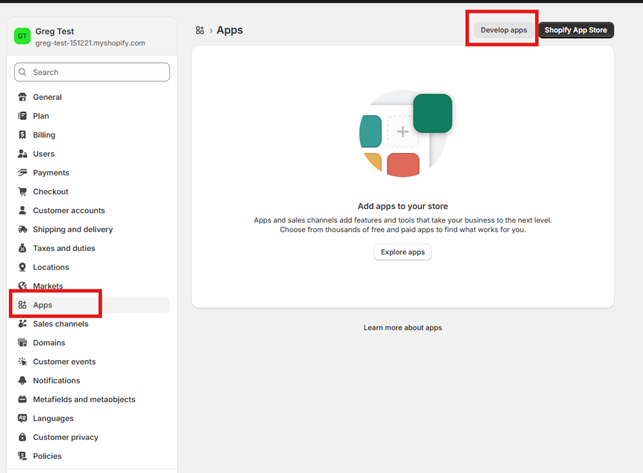
From the Shopify Admin homepage, select Settings in the bottom left-corner of your screen.
Within Settings you will select Apps > Develop apps.
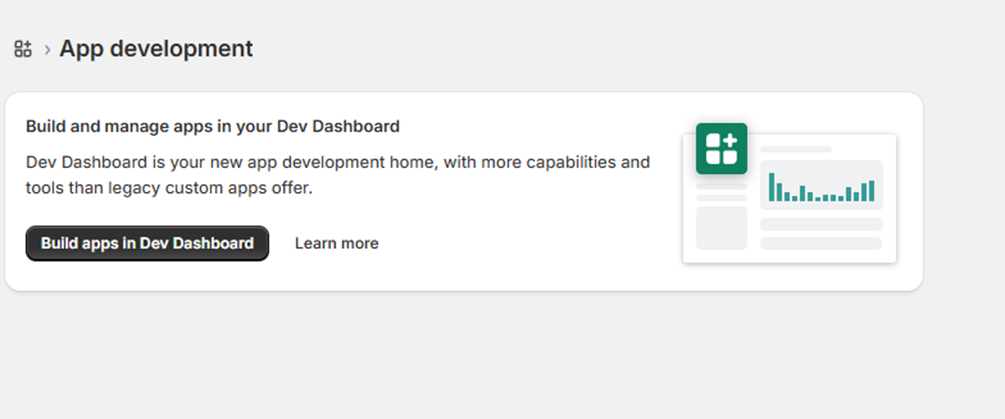
Within the App development page, select Build apps in Dev Dashboard.
2. Create a new app
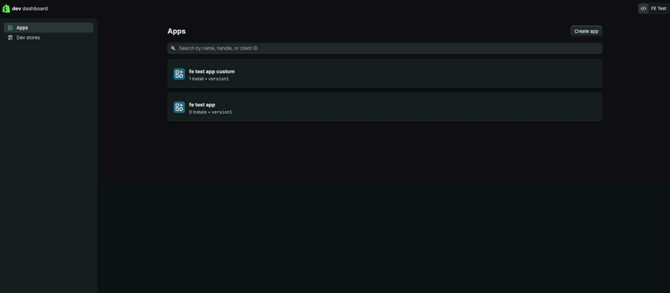
From the Shopify Partner and Dev Dashboards, navigate to Apps and click Create app. Ensure you are in the Partner account by looking in the upper right corner.
3. Create a new app for the Shopify store
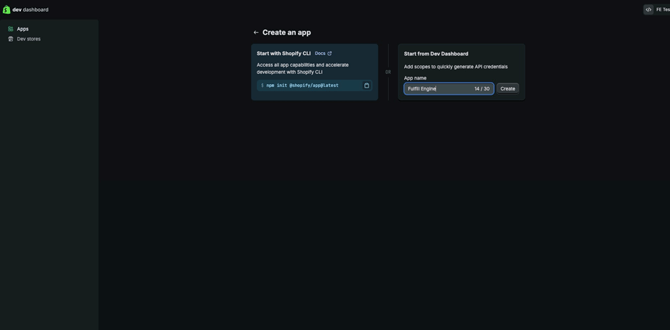
Choose “Start from Dev Dashboard" (right side), enter the app name, and click Create.
4. Create a new app version and configure access
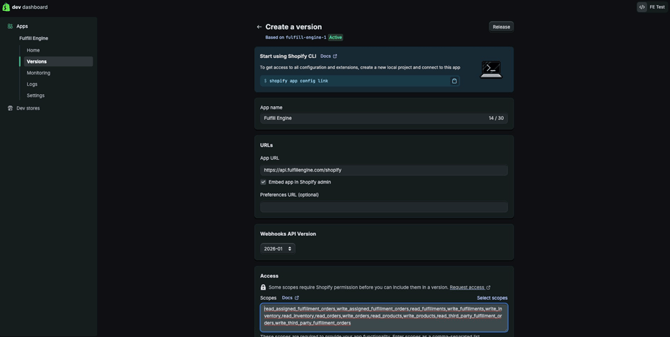
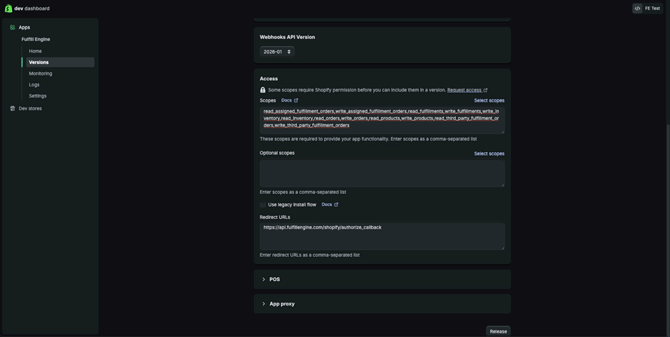
Navigate to Versions and begin creating a new version. Confirm the App URL and Redirect URL and, then proceed to configure scopes.
App URL should be: https://api.fulfillengine.com/shopify
Redirect URL should be: https://api.fulfillengine.com/shopify/authorize_callback
Paste the required scopes exactly as shown below
read_assigned_fulfillment_orders,write_assigned_fulfillment_orders,read_fulfillments,write_fulfillments,write_inventory,read_inventory,read_orders,write_orders,read_products,write_products,read_third_party_fulfillment_orders,write_third_party_fulfillment_orders
5. Create a release the app version
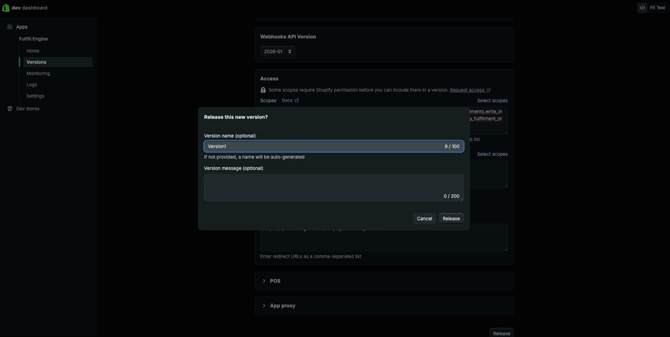
After confirming all settings and scopes, release the version. (name is optional)
6. Install the app
Shopify will prompt you to select a store. Choose the specific Shopify store this app was created for. During installation, Shopify allows you to select another store within the same organization.
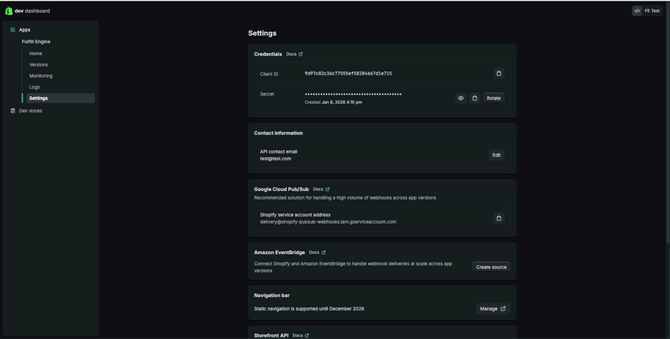
7. Retreive the Client ID and Secret
From the app's Settings page, retrieve the Client ID and Client Secret. Use these credentials when configuring the corresponding Shopify store in Fulfill Engine.
8. Repeat for each additional Shopify store
Create a new app for every additional Shopify store being connected to Fulfill Engine so each store maintains its own credentials.
9. Connect the app in Fulfill Engine
For Seller Essential - if you do not see the Shopify tile within your account, reach out to our Customer Success Team at info@fulfillengine.com.
For Seller Pro - you are able to expose Shopify to your account by setting the account flag > Allow self service Shopify stores.
Notes and troubleshooting
- API scopes must match exactly; missing scopes will cause authorization failures.
- If scopes are updated, a new app version must be created and released.
- If credentials are rotated, they must be updated in Fulfill Engine.