Connecting your supplier accounts is a feature supported for Decorator Pro producing volume in house.
When you are producing self-generated production volume, Fulfill Engine will automatically utilize your supplier accounts. You are only able to pull inventory from the suppliers you are set up with.
Any volume that is pushed to you from within the FE Network, Fulfill Engine will provide garments ordered from our supplier accounts. This would be any orders that were generated from outside your sales team.
Once your Warehouse has been added within the FE Network, you will need to connect your supplier accounts.
You are able to set up your Suppliers at the top of your account under Configuration > Suppliers.
AS Colour
You will need to input your AS Colour username and password, as well as an API subscription key.
- Your AS Colour account will need to be enabled for purchasing through the API. Email api@ascolour.com, and inform them that you will be using Fulfill Engine for ordering on your account.
We would like to allow Fulfill Engine to begin ordering products on our account (#ACCOUNT_NUMBER). Can you please provide us an API subscription key?
Augusta Sportswear (Momentec)
This connection includes Founder Sport Group. You will need to input your Augusta Sportswear customer ID and website username and password.
- It is recommended (not required) that you create an account for API use, which can be added on the My Account page on www.augustasportswear.com.
Carolina Made
If you have a Carolina Made account that you would like to integrate into the automation, please reach out directly to them to let them know Fulfill Engine will be ordering on your behalf.
We would like to allow Fulfill Engine to begin ordering products on our account (#ACCOUNT_NUMBER).
Once you have informed them, you will need to input your username and password.
Lane Seven
You will need to input your username and password.
- Your Lane Seven account will need to be enabled for purchasing through their Promo Standards API, and a unique API username / password for that account will need to be provided to Fulfill Engine. Email talha@lanesevenapparel.com, and inform them that you will be using Fulfill Engine for ordering on your account.
Example communication to Lane Seven
We would like to allow Fulfill Engine to begin ordering products on our account (#ACCOUNT_NUMBER) using the Promo Standards API. Can you please help us with this?
SanMar
You will need to input your username and password.
- Your SanMar account will need to be enabled for purchasing through their Promo Standards API, and a username / password for that account will need to be provided to Fulfill Engine. Email sanmarintegrations@sanmar.com, and inform them that you will be using Fulfill Engine for ordering on your account.
Example communication to SanMar
We would like to allow Fulfill Engine to begin ordering products on our account (#ACCOUNT_NUMBER) using the Promo Standards API. Can you please help us with this?
S&S Activewear
You will need to input your account number, API Key, and payment details.
- If you do not have an API key, email api@ssactivewear.com and request an API Key.
Example communication to S&S
We would like to allow Fulfill Engine to begin ordering products on our account (#ACCOUNT_NUMBER). Can you please confirm our API Key?
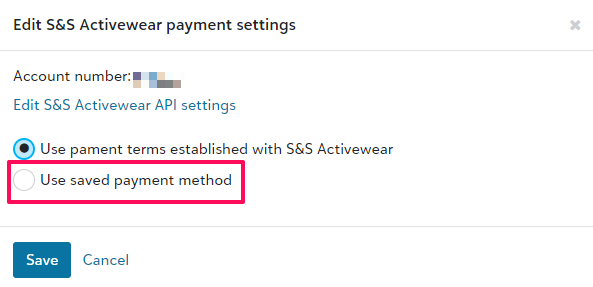
- Payment information
- If a payment method should be used when creating purchase orders, provide the email address of a user with a saved credit card on file with S&S Activewear and select the desired payment method.
- You may also choose to use terms for payments, if you have established terms with S&S Activewear and no payment method is required when creating purchase orders.
If you do not have terms with S&S, you will need to select your preferred payment method within the set up process in Fulfill Engine.
Setting Sourcing Rules
Within your Suppliers tile, you have the ability to set supplier rules such as sourcing priority under Products sourcing rules.
This applies to any garments that are sourced from more then one supplier.
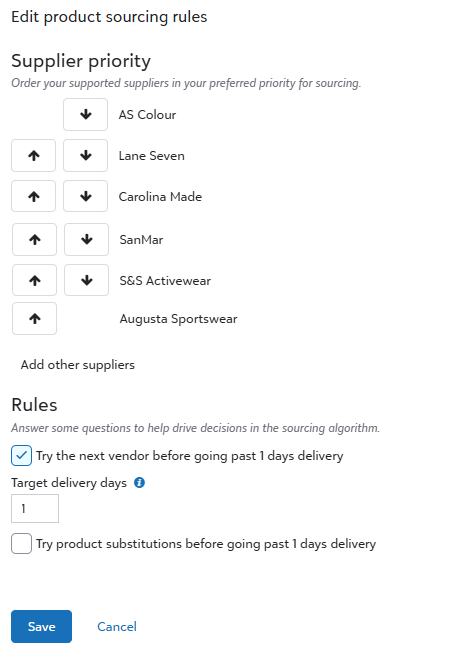
There is an option to Add other suppliers. These are suppliers that we are not integrated with at this time. However, you have the option to prioritize those suppliers.
If you do, the system will generate a PO for you to manually order those blanks vs the system automatically doing it.
Setting PSST and Automatic Ordering
From your Warehouse Dashboard, under Configuration select Suppliers.

From here you will select which carriers you have PSST with, as well as the average transit times form those carriers to your production warehouse.
To ensure automatic ordering, you will need to toggle on the option to Automatically submit purchase orders on batch closing. In the event this is not turned on, you will be required to take manual steps to order the items.
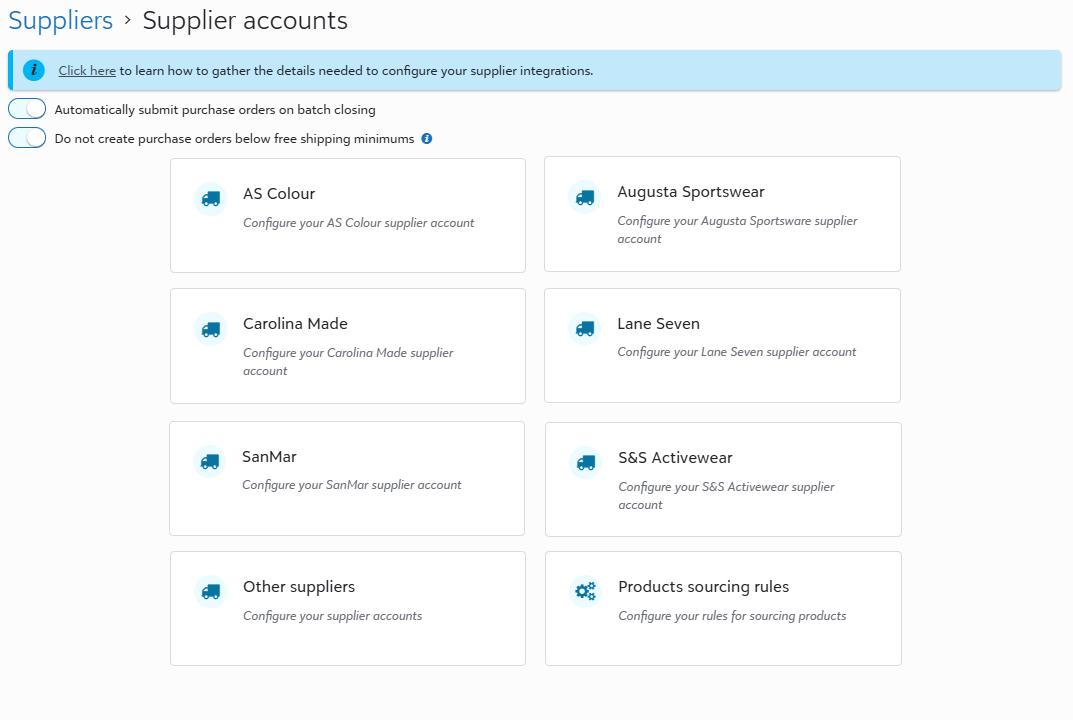
If you opt not to have blanks automatically sourced, you will need to either manually alert the system to order the blanks, or manually order them from the suppliers.