There are a few ways to set up your price sheets. This article will explain the steps to set up or edit a price sheet!
Price sheets were originally crafted with the aim of safeguarding your profit margin, whether you're sending invoices or disbursing profits with your Accounts. If that is not the case for you, price sheets are still a valuable tool to keep an eye on your production cost to ensure you are setting the correct profit margin.
Before we dive in, there are a few important details to note when it comes to your cost.
- You have the option to establish a Payment Processing Fee on a price sheet to cover the credit card transaction fee charged to you from Stripe.
- Any orders submitted on your Sales Portal via a White-Label Store or the Order Now portal will be run through Stripe for processing.
- For example, you may set a standard 3% Payment Processing Fee on a price sheets where an account has a White-Label Store or is submitting purchase orders through the Order Now portal to pass that cost to your Account.
- Fulfill Engine will automatically charge you a Software Fee on all orders that are processed via your Sales Portal. This fee is on the order total, excluding shipping and/or taxes and will be automatically pulled from your default payment method the first week of a new month for all orders submitted the month prior.
- If you wish to have a profit margin for maintaining the store on your customer's behalf, your percentage will need to be above the agreed upon Software Fee.
- If you wish to transfer that cost directly to the Account, the pricing sheet should reflect the percentage fee to cover your cost.
The profit that shows on a product within a White-label store, only reflects the unit cost (blanks + decoration) as calculated by your pricing sheet.
Any Handling fees set within a price sheet will be deducted from any profit that shows on the product and should be communicated to your Account.
Let's walk through the process!
When your sales portal is created, a default and no cost price sheet will be automatically established. The default price sheet does not cover everything and should be reviewed and approved prior to bringing on new Accounts.
Once within your Sales Poral, you will see the option for Price sheets.
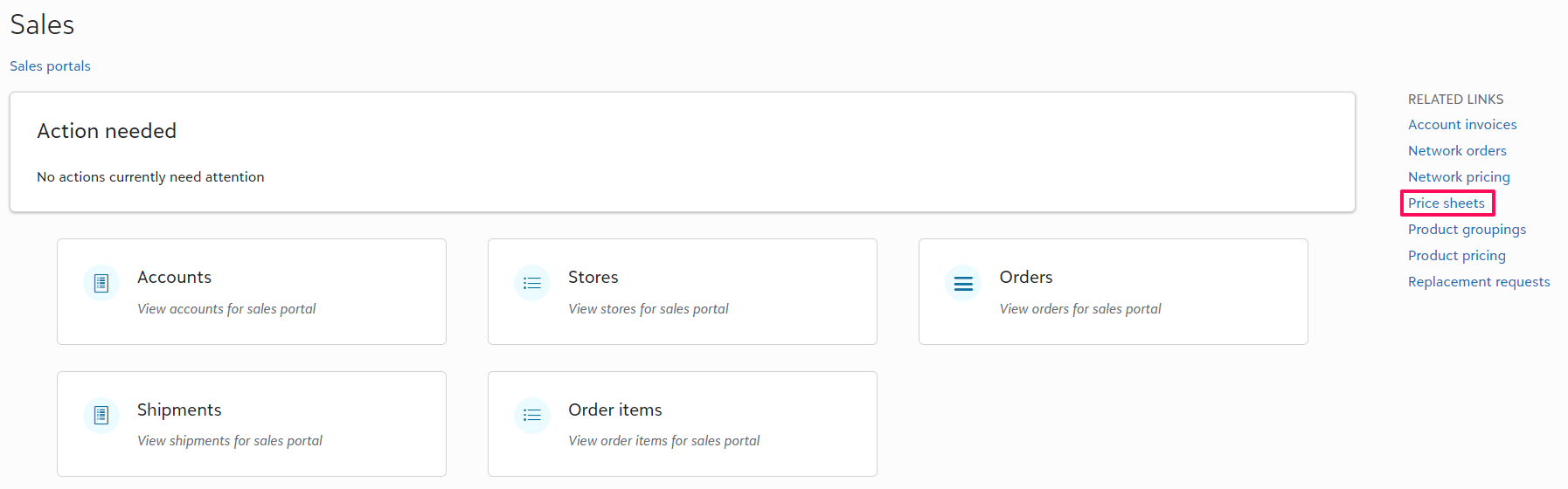
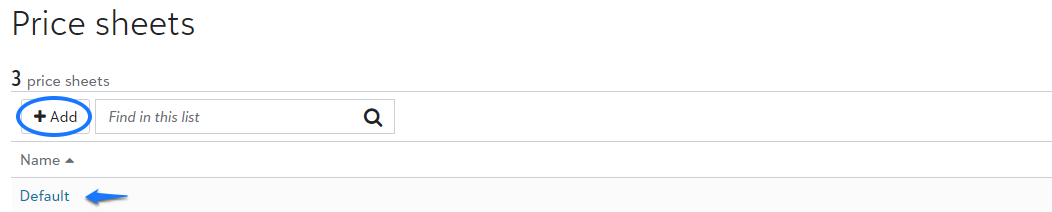
Once in Price sheets, you will have the option to +Add a new price sheet.
To view an existing price sheet, click into the price sheet name.
Creating a Price Sheet
Once you select to +Add a price sheet a form will appear. This form breaks down your options for pricing and includes, but is not limited to, material, decoration, and/or shipping upcharges.
Let's walk through how to best set up your price sheet based on your unique situation.
- You are working with an Account who is either on terms, or has their own profit/fundraising.
- We will want to establish a pricing structure that reflects what you will be charging your Account when they submit orders through your Sales Portal.
- The pricing sheet should include your profit margin. For example, you will likely want to set a percentage upcharge on blanks and/or shipping.
- Our system will automatically generate invoices as well as calculate disbursements owed to the Account if applicable.
Learn more about invoicing and disbursements here.
- You are building a store outright and you will not be invoicing or disbursing any profits to an Account.
- We recommend you establish a price sheet that will reflect your production costs. For example, you would not set an upcharge on blanks or decoration.
- This set up will allow you to build products and view your cost of production when setting your profit margin on a product level.
- If using the Network, make sure your price sheet reflects the Network decoration cost vs your cost if done in-house.
- You want to set a flat rate cost.
- Although we highly recommend using price sheets as a tool to see your production cost, if you prefer to bypass pricing sheets and set your cost by product, you can!
- When creating an account, a price sheet will still be required although once you have built a product, you have the option to bypass the pricing sheet and establish your own item cost.
Learn more about price overrides here.
- You want to test orders within production.
- It is very common to submit test orders into production to walk through the workflow before going live with stores.
- To avoid requiring a payment for a test order, create a test Account and assign the no cost price sheet. This will allow you to submit test volume into production at no cost.
Material Pricing
Blank costs are an average cost fed by the integrated suppliers. It is not specific to your supplier accounts. You have the ability to override the blank cost on your Sales Portal, within Product pricing, or within a specific price sheet impacting only accounts tied to that price sheet.
The price sheet offers options to set a mark-up as a percentage, fixed cost, and/or minimum and maximum markups.
You will also see an additional section for All-in pricing products. Specific Network supported products are set as all-in pricing vs a blank + decoration cost. To protect your profit margin within your pricing sheet, you can separate your markup on those products within this field. If nothing is entered in these fields, then pricing will default to the material blank cost listed.
Editing a Price Sheet
Once you have selected into the price sheet you are wanting to edit, you will see a dropdown option to Edit.
From here, you are able to change the price sheet name, or details. When editing the pricing details, it will prompt you back to the same detailed form as when a new price sheet is created.
Changes made to price sheet will automatically reflect on any new orders submitted after the alterations were saved.
Credits and Charges
From an account, you are able to to manually add charges or credits. This could be retro-active charges for upgraded shipping or a percentage credit for a delayed order.
From the account page, under Configuration you will go into Additional credits and charges to make those changes.
