This article is specific to STAHLS' Fulfill Engine Seller Essential accounts.
You are able to alter product details on the store's homepage under Products. Once within the Products tile, you are able to select the specific item you are wanting to change. From the Tasks dropdown, you will be prompted with options.
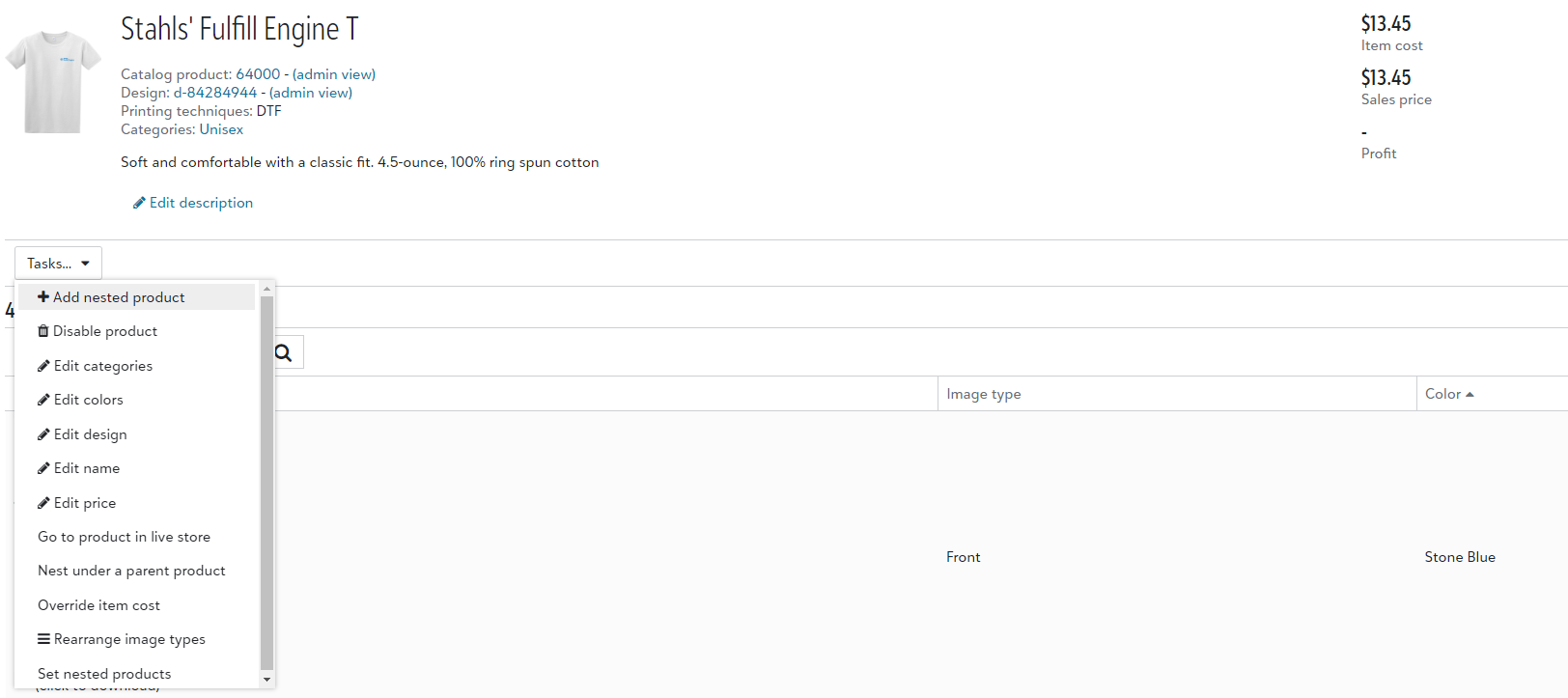
Arrange products and colors
This option allows you to change the default color of the main product image as well as the order in which they show on the storefront.
To change the default color you will select the pencil icon under the garment. To change the order, select the item, and while holding down, manually move the icon to the desired location.
If your products are organized into categories, to change how they appear on your storefront, you will need to go to Categories from your Sales Portal under Products.
From here you will need to select into each category and from the task drop down, select Arrange products and colors.
Rearrange image types
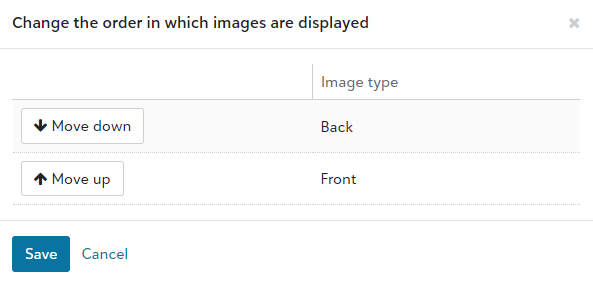
If the front of the product is not the main decoration you wish to showcase first, you have the option to rearrange it.
From Tasks, under Rearrange image types, you will be able to restructure how the mockups are displayed on the front end of the white-label store.
Edit Colors
If you would like to change the color selection offered on this product, you will select Edit colors from the Tasks dropdown.
Once here, you will see all colors offered within the product selected as well as the correlating mockups which will show on the storefront. When a color is selected, a checkmark will show on the color icon.
Edit Design
You are able to easily update a design without needing to delete and recreate variances! Simply select Edit design from the Tasks dropdown.
This will take you through the same flow as when a new product is created. Once you have made the appropriate changes, you will confirm the garment colors and select Save product.
To save time, the system will still reflect the garment colors previously selected!
Editing the Price
The cost for an item available on the store will vary based on the product, type of decoration, as well as decoration details. Before an item goes live on a store, you will want to ensure the pricing is aligned with your profit margins.
You have the option to set your profit to either a set dollar amount, percentage, or a fixed sales price from the product page. However, you are not tied to that price. You are able to edit your pricing at any time!
Adjusting Individual Pricing
From your Products page on the stores homepage, you will select the product you are wanting to update > select the Tasks dropdown > Edit price.
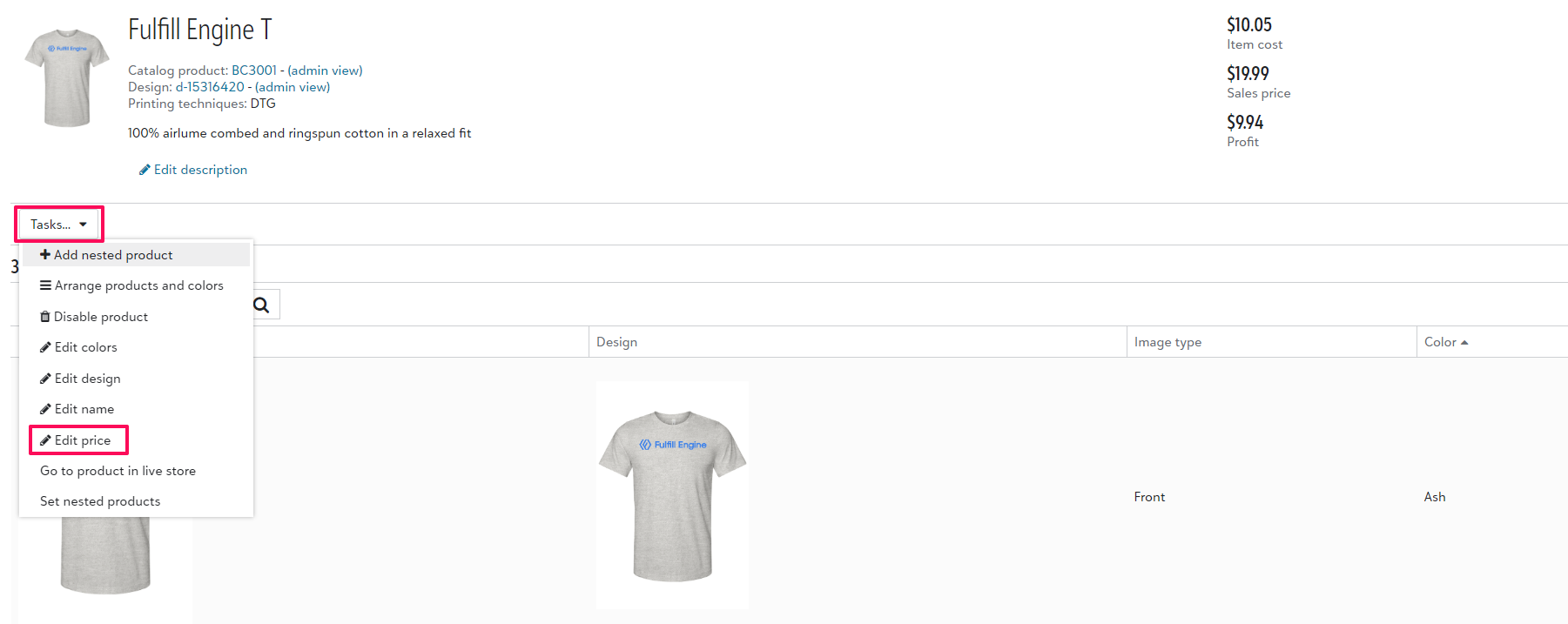
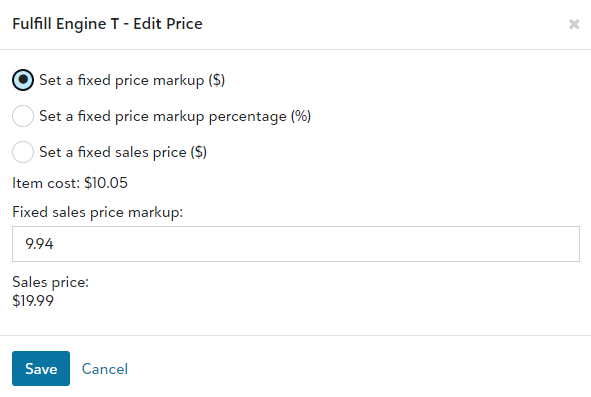
You will then be provided with a few different ways to configure the price. After you select your desired price and Save, you will see the new sales price in the top-right of the page as well as on the storefront.
Adjusting Pricing In Bulk
Similar to adjusting an individual item, you will go to the Products page on the stores homepage. Instead of selecting a single item, you have the option to Select all, or check the specific items you are wanting to bulk edit > Set sales price markup for products
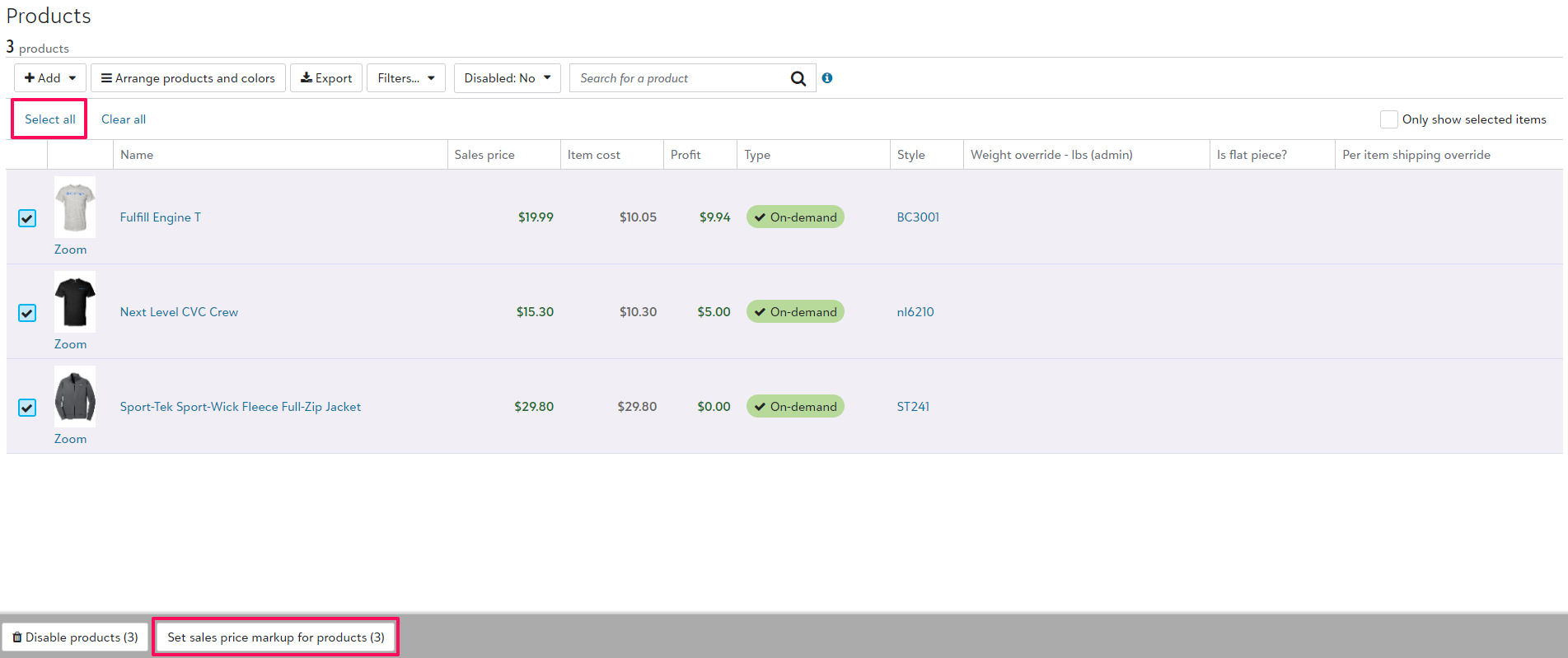
Using Select all will only apply to products on the visible page. If you wish to include more, or all, items within your bulk update, you will need to repeat this step on all correlating pages located at the bottom of the screen.
When doing a bulk update, you have the options to use a flat dollar amount, or a percentage. After you select your desired pricing and Save, you will see the new sales prices on the products page as well as on the storefront.
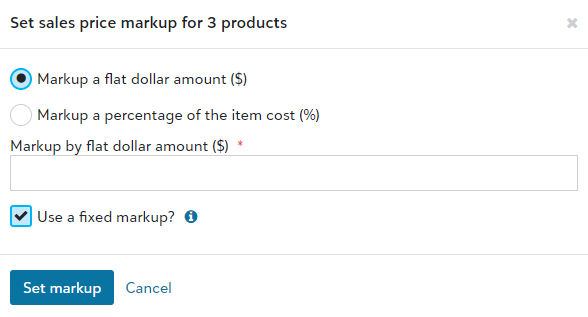
When selecting a fixed markup, your customer's final sales price may fluctuate as garment and decoration prices change.
When selecting a fixed sales price, your customer's final sales price will not change, but your margin is subject to change based on fluctuating garment and decoration costs.
- Set a fixed price markup ($) - Use this option to choose exactly how many dollars you would like to earn as a profit on this item. The final sales price is calculated and shown below. As the market price of blank goods fluctuate, the store sales price will fluctuate and maintain a consistent fixed profit for the item.
- Set a fixed price markup percentage (%) - Use this option to choose a percentage that the sales price should be marked up above the item cost. The final sales price is calculated and shown below. As the market price of blank goods fluctuate, the store sales price will fluctuate and maintain a consistent percentage margin for the item.
- Set a fixed sales price ($) - Use this option to set an exact sales price for the item in the storefront. The current profit margin for the item will be shown below, but it may change as the market price of blank goods fluctuate.
Any changes you make to the product will immediately reflect on the storefront!