This article is specific to STAHLS' Fulfill Engine Seller Essential accounts.
Under Products within your store's dashboard, you will see the option for Categories.

Here you are able to add Categories such as Unisex, Ladies, and Youth or T-Shirt, Hoodies, and Bags. There is no limit as to how many categories you may have!
To create a category that holds products, select + Add category and choose Store products. You’ll then be prompted to select the items you want displayed under that category.
You also have an option to set Subcategories. When you +Add the category you will select that it will contain Subcategories (see below).
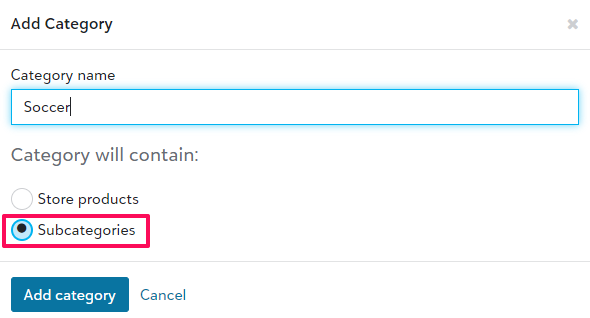
An example of this would be if you were working with a school's athletic department. Your categories might be the name of the sport, and the subcategories would be T-Shirt, Hoodie, and Bags.
Once you have created the category, you will select to +Add subcategory if applicable. First naming it, then adding products to it.
Editing an existing product's category
From the store, you will go into Products > then select the product you which to edit. From the Tasks dropdown there will be an option to Edit categories.
You will select the appropriate categories, knowing that you are not limited to just one. For example, you might want the product to appear under T-Shirts and Limited Edition.