This article is specific to STAHLS' Fulfill Engine Seller Essentials accounts on the Discount Tier 1 or Discount Tier 2 plan with pre-approval.
A 3PL product is a non-on-demand decorated item that have been pre-approved by STAHLS' Fulfill Engine. Apart if this process is hard-coding your store to a specific pre-approved Network Decorator to hold the inventory. Examples would be things such as pre-decorated apparel or hardgoods such as a keychain.
Creating 3PL items
Once your account has been approved for 3PL, the option will show within your store.
To create a 3PL item, you will need to be on the store's homepage under Products.
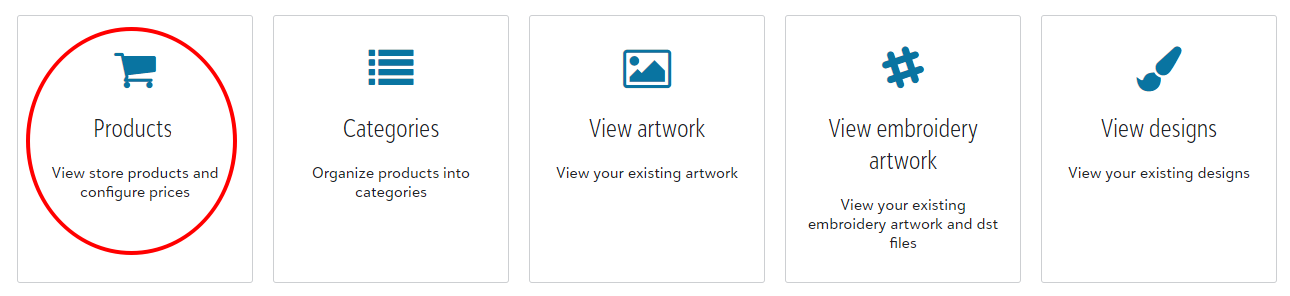
Once within Products, you will select to +Add located to the far left of the header bar > 3PL product at which point you will name the product > Add Product.
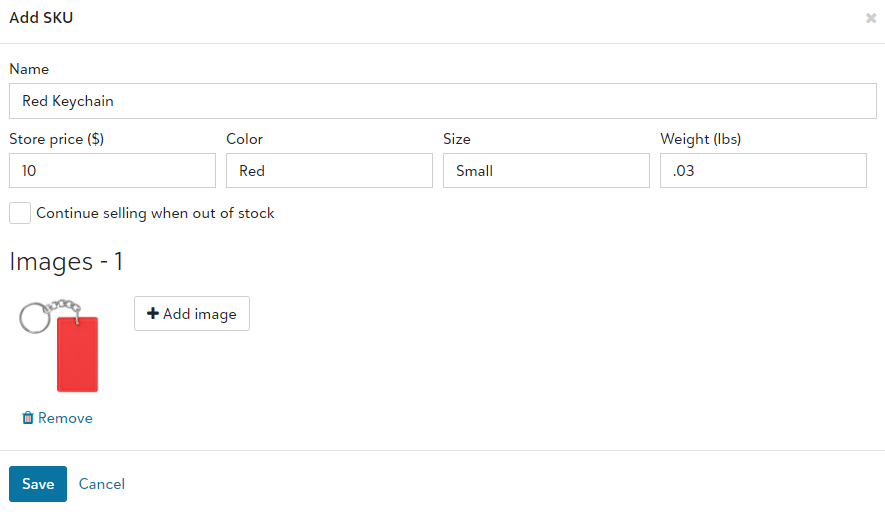
This will prompt you to the product page for this item where you will input the variance details.
For example, if you offers multiple keychains on your store, the 3PL item would be Keychain, with the SKUs detailing each variant.
Submitting 3PL Purchase Orders (PO)
Once a 3PL item has been created, you will be able able to submit a PO into the system to generate inventory.
You are able to access inventory from the store homepage. From there you will navigate to Manage inventory under Store configuration.
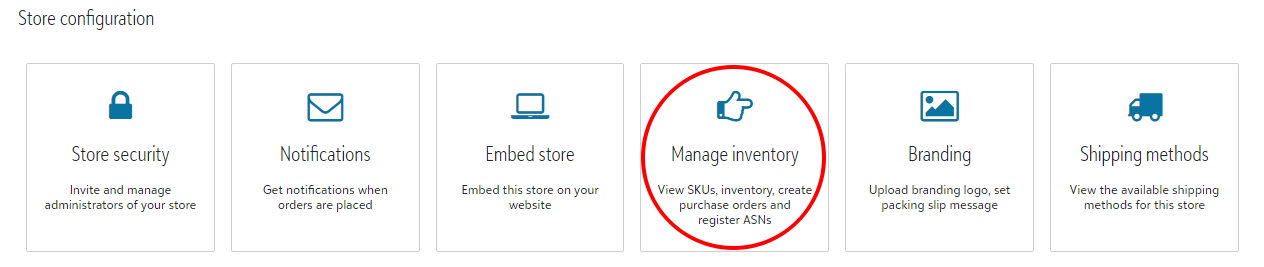
Once within Manage inventory, you will select the Purchase orders tile and +Add located to the far left of the header bar.
When creating a new PO, you will be prompted to list the supplier, as well as the desired quantities for each SKU before selecting Save.

After the PO has been submitted, the item(s) will reflect under the SKUs tile within Manage inventory.
The PO will then be received by the pre-determined Network decorator and added to available inventory.