You are able to access your current inventory from the Inventory tab located at the top menu bar of your Account Dashboard.

Once within the Inventory page, you are able to view and edit any of your Product catalog inventory. You will select the specific store where you are wanting to manage or view inventory for.

Within this view, you will see the option to view SKUs, Purchase orders, and Inventory notifications.
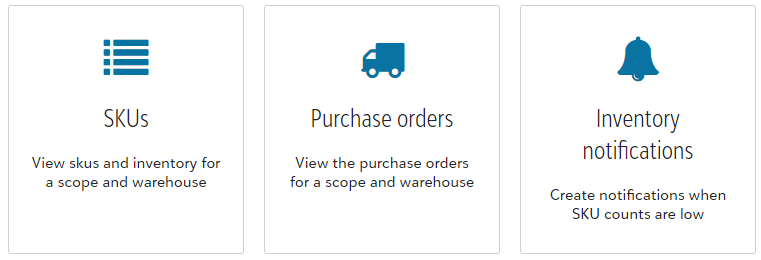
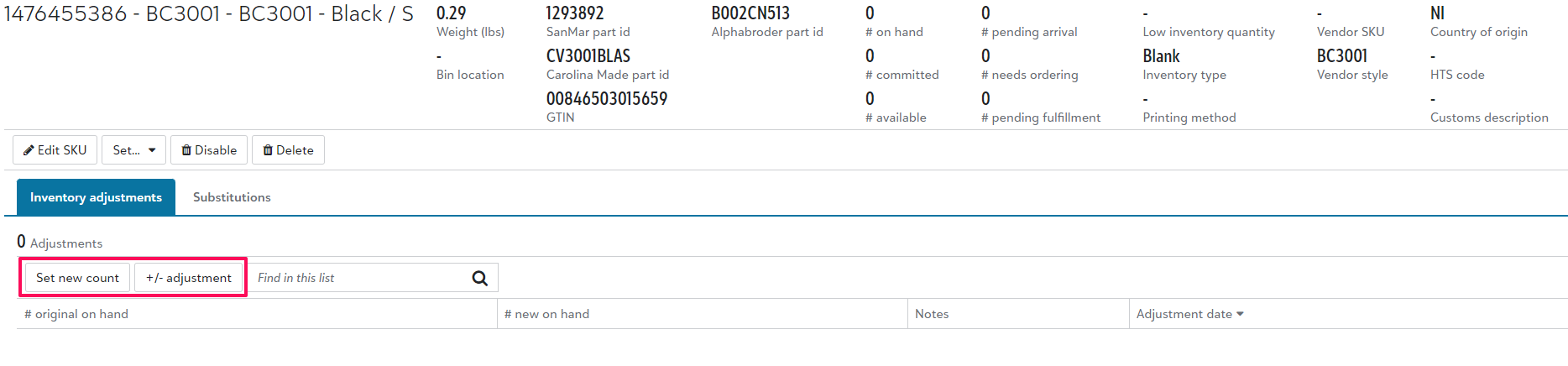
SKUs: This is where you will add and view warehoused blank inventory on a high level. You are able to filter your past history by selecting to see Only SKUs with inventory history or search for a specific item using the format; product ID - color / size.
Once you have found the item, you are able to select the System SKU hyperlink to then manage that product - setting a new count, and or adjusting it.
Purchase orders: Once inventory for an item has been established, any additional stock can be processed through Purchase orders.
By selecting +Add you will input the expected quantity for that product, as well as internally set the supplier and/or notes.
When ordering the stock with the supplier, you will use the PO generated within the Fulfill Engine system to allow for a seamless receiving process.
Inventory notifications: Easily keep an eye on stock by setting notifications for blank inventory when it drops below a specific threshold.