When to Use This Process
Use this process when you need to manually produce items instead of relying on automated fulfillment or bulk production workflows.
Step-by-Step Instructions
1. Navigate to Shipments
- Go to Explore.
- Select Shipments.
- Review the list of all available shipments.
- Identify the shipment you want to manually produce.
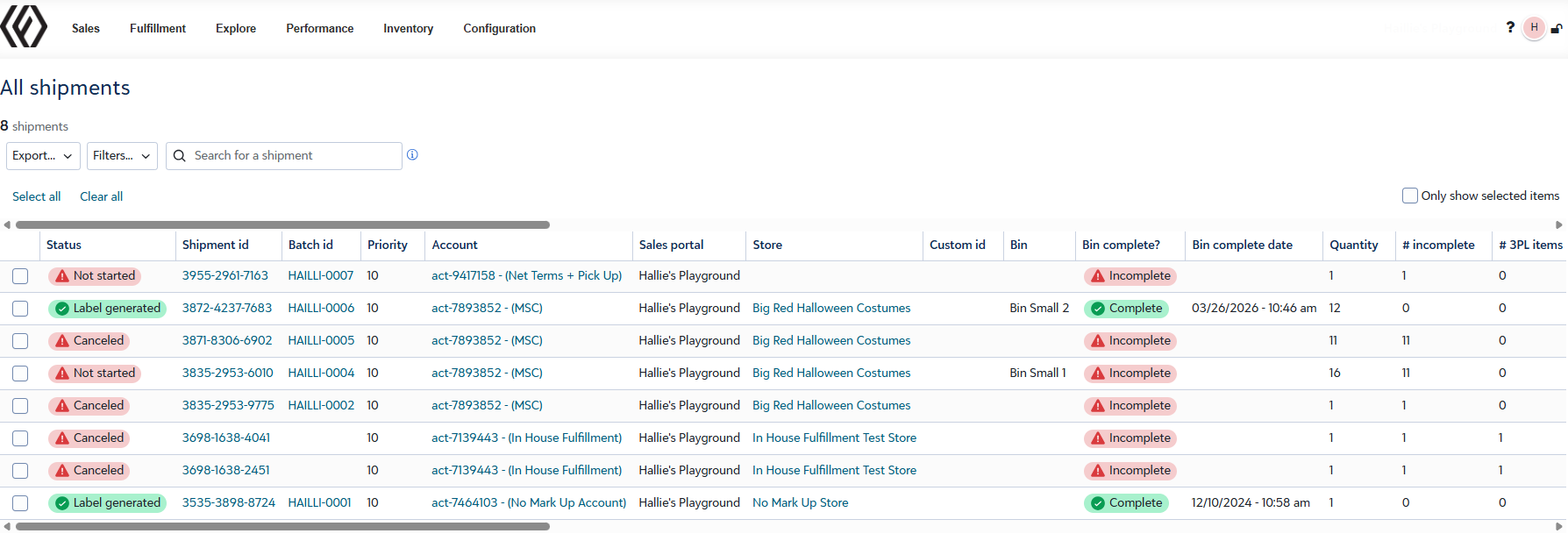
2. View the Order Item
- Select the desired shipment.
- Click View Order Item.
- From this screen, you can:
- Click Produce directly, or
- Copy the QR Code to begin manual fulfillment.
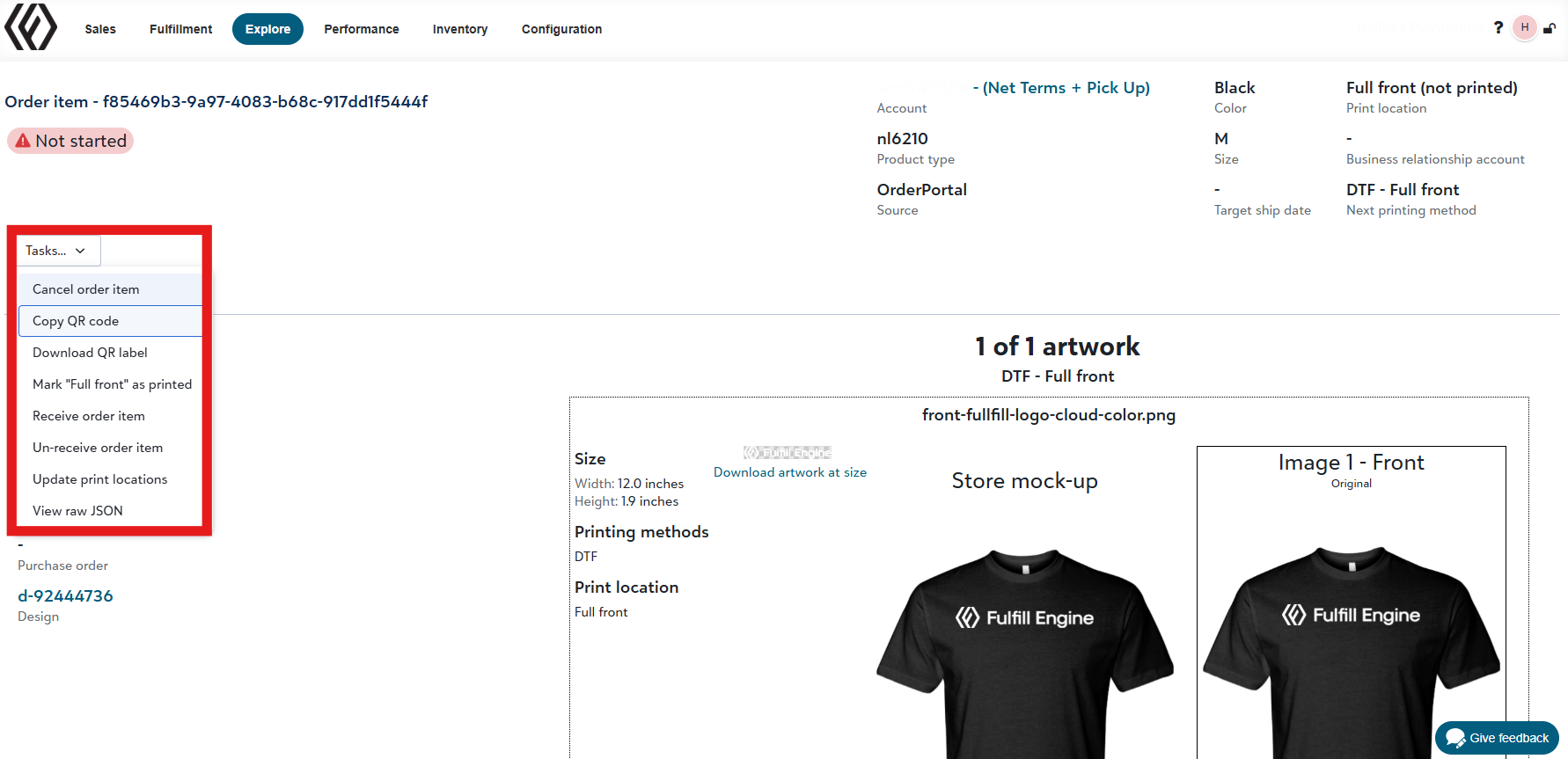
💡 Tip: Copying the QR code provides better control during manual fulfillment.
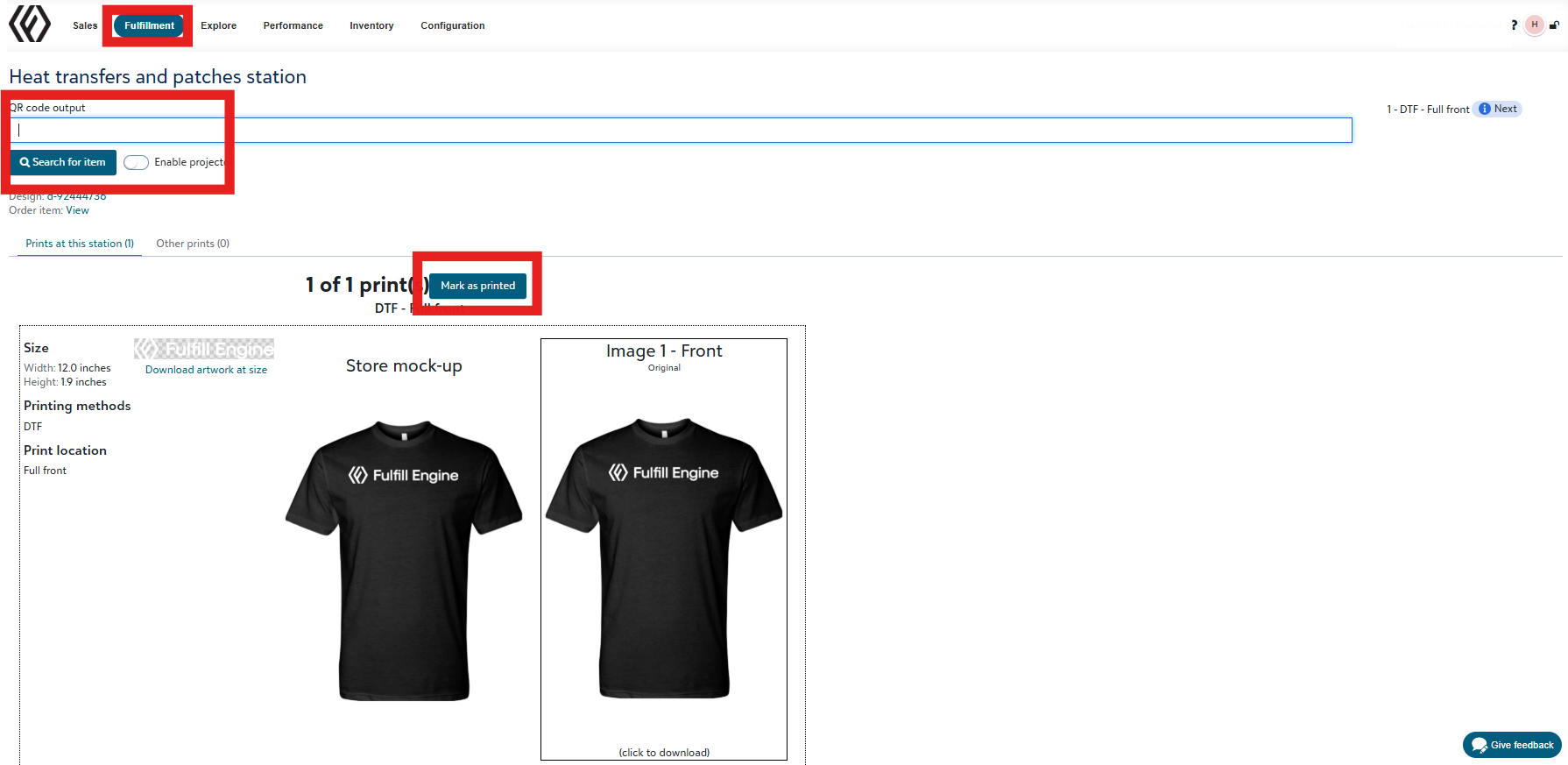
3. Print the Item Using the QR Code
- Navigate to Heat Transfers and Patches.
- Paste or scan the copied QR Code.
- Review the displayed information:
- Artwork preview
- Placement instructions
- Once printing is complete, mark the item as Printed.
4. Mark the Item as Produced
- Use the same QR Code copied earlier.
- Navigate to Mark Produced.
- Paste the QR code.
- Click Mark Item as Produced.
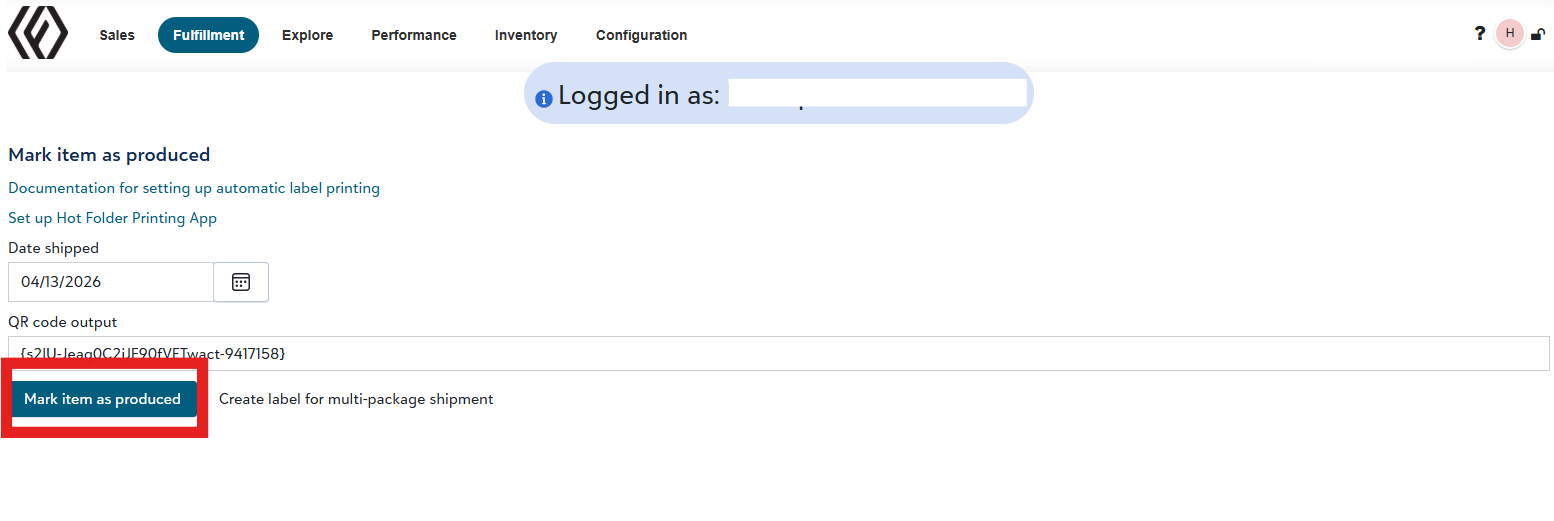
✅ The item is now manually produced.
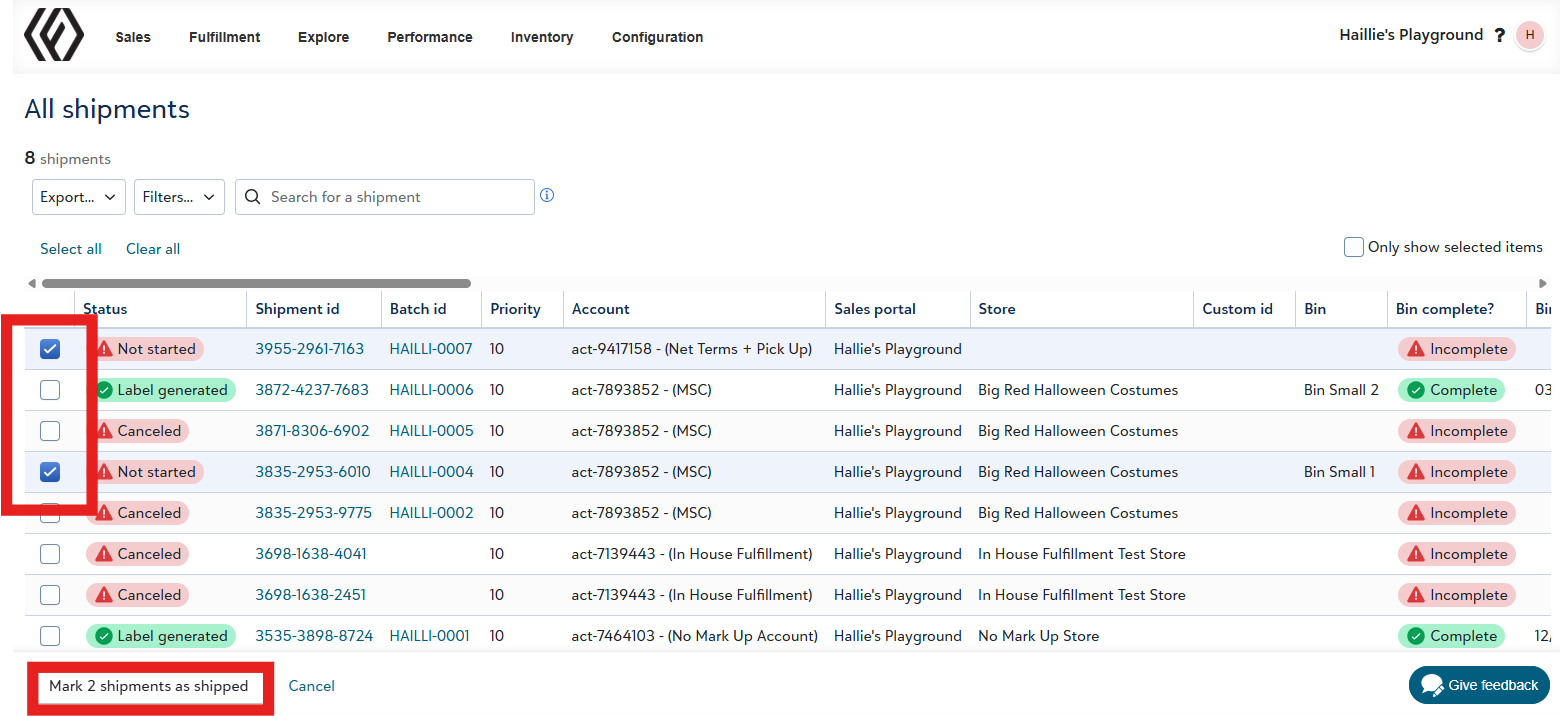
5. Fulfilling Items in Bulk (Optional)
- To manually produce multiple items:
- Return to the Shipments list.
- Work down the list one shipment at a time.
- Complete and mark each item as finished before moving to the next.
Important Notes & Warnings
⚠️ Shipping & Pickup Slips
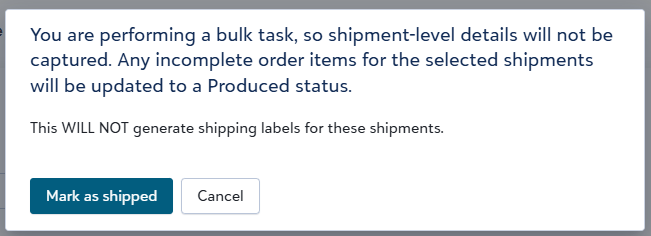
- The fulfillment of items in bulk does NOT:
- Print a pickup slip
- Generate a shipping label
- Manual production overrides all other fulfillment steps.
Questions?
If you have questions about manual fulfillment of orders, contact info@fulfillengine.com for support.