Availability & Requirements
Before getting started, please review the following requirements:
- ✅ Supported only for in‑house fulfillment
- ✅ Requires a Decorator Pro account
- ✅ Customer‑supplied apparel SKUs must be enabled by Fulfill Engine
Step 1: Request Customer‑Supplied Apparel Access
Customer‑supplied apparel SKUs are not enabled by default.
To request access:
- Email info@fulfillengine.com
- Ask to have Customer‑Supplied Apparel SKUs enabled for your account
Once enabled, you’ll be able to proceed with setup 2.
Step 2: Add Base Costs to Customer‑Supplied Apparel SKUs
After the SKUs are added to your account:
- Navigate to the newly enabled Customer‑Supplied Apparel SKUs
- Enter a base cost for each item
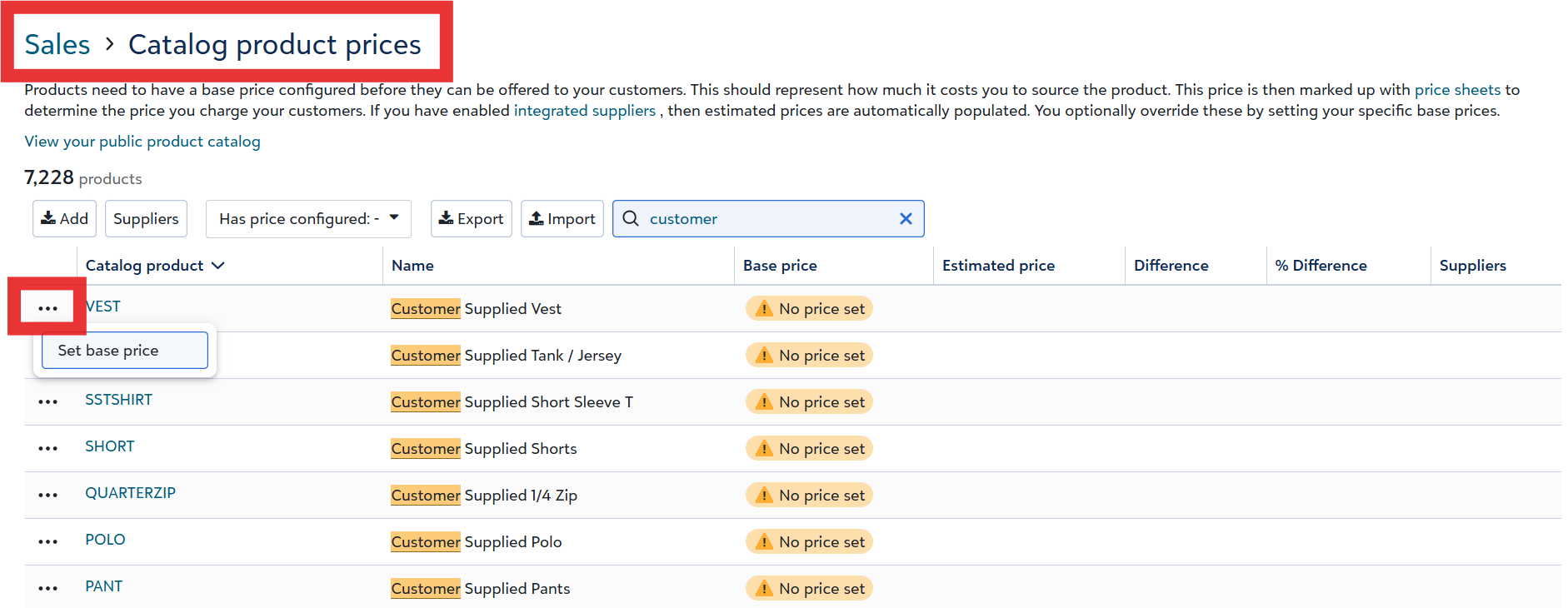
💡 Even though the garment is provided by the customer, a base cost is required for:
- Pricing calculations
- Job costing
- Order reporting
Step 3: Assign the Customer‑Supplied Apparel Product Grouping
To make customer‑supplied apparel available for ordering:
- Go to the Account that will use customer‑supplied apparel
- Assign the Customer‑Supplied Apparel product grouping to that account
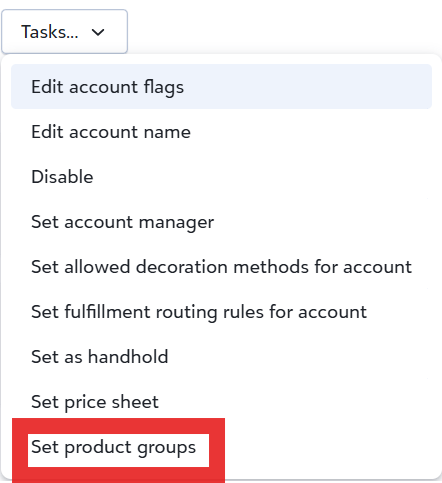
Once assigned, the account will be able to select customer‑supplied apparel items when placing orders.
Important Notes
- Customer‑supplied apparel is not supported for network fulfillment
- Inventory tracking for customer‑supplied garments is managed externally
- Fulfillment timelines may vary depending on when garments are received
Questions or Need Help?
If you have questions about enabling or using customer‑supplied apparel, contact info@fulfillengine.com for support.