There are a few instances where discount codes will be beneficial. The first would be if you are setting up a gift store. This would be when your customer would like to billed in full for the product vs the end customer.
Another popular reason would be if you would like to extend a one time use gift card or even a general percentage off.
If you have a store interested in the functionality of Gift Codes & Discount Codes, you will first need to establish terms with that account.
Once approved you will turn on the account flag Allow net terms under the account admin > Tasks > Edit account flags.
What is the difference between a gift code and a discount code?
These two options offer very different access. A gift code is unique. It acts similar to a gift card allowing you to extend a specific dollar amount. You also have the ability to set up a gift code to give a person access to select a single item from either the store as a whole, or within a category.
A discount code does not have a limit. This would be your general percentage off the total subtotal. This is your production cost before shipping and taxes (if applicable).
Creating Gift Codes and Discount Codes
Once it is confirmed the account has access to gift and discount codes, you will see the feature available on the store dashboard.
Gift Cards
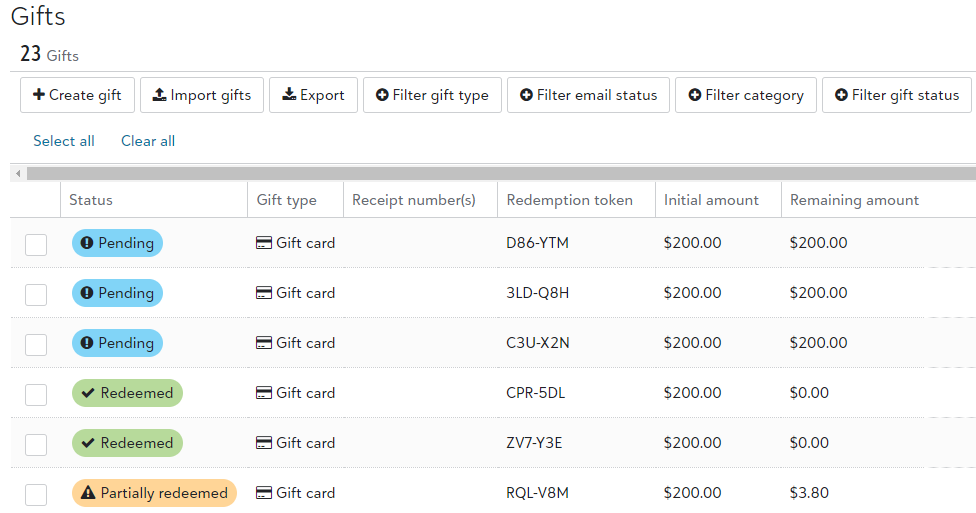
When you go into gifts, you will see how many total unique codes have been created for the store. As well as you are able to see which are pending (not yet redeemed), redeemed and partially redeemed.
Omitted from the below preview, you will also have access to view the recipient's name, email address, who created the code, and when the email with the code was created. In addition, you have the option to create an expiration date, but it is not required.
To create a gift, you will select + Create gift and input the details. This can also be done in bulk by select to Import gifts and following the header format provided within the import feature.
The gift card options are to offer a cash balance, or one free item. One free item will allow you limit to specific categories.
Discount Codes
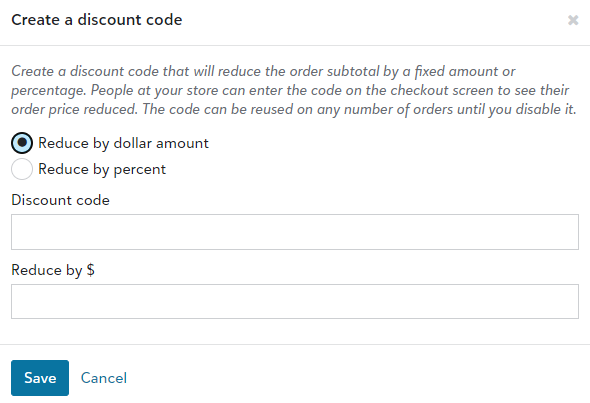
It is a more simplistic process when creating a discount code because it can be used more then once. From your dashboard, under Orders, you will select Discount Codes. Selecting +add the below prompt will allow you to input the discount details, either reducing by a dollar amount, or by a percentage.
Sending Gift Codes and Discount Codes
When you create a gift code or discount code, and want to send it directly to recipient, you will need to select the item > send email. You also have the option to do so in bulk for all codes within that frame of view.
When sending a code, you do have the option to add a custom message for the recipients which will also be included in the email.
When the recipient selects Shop Now within the email, it will take them directly to the store, and auto apply the code to their cart at checkout.
Require Order Approval
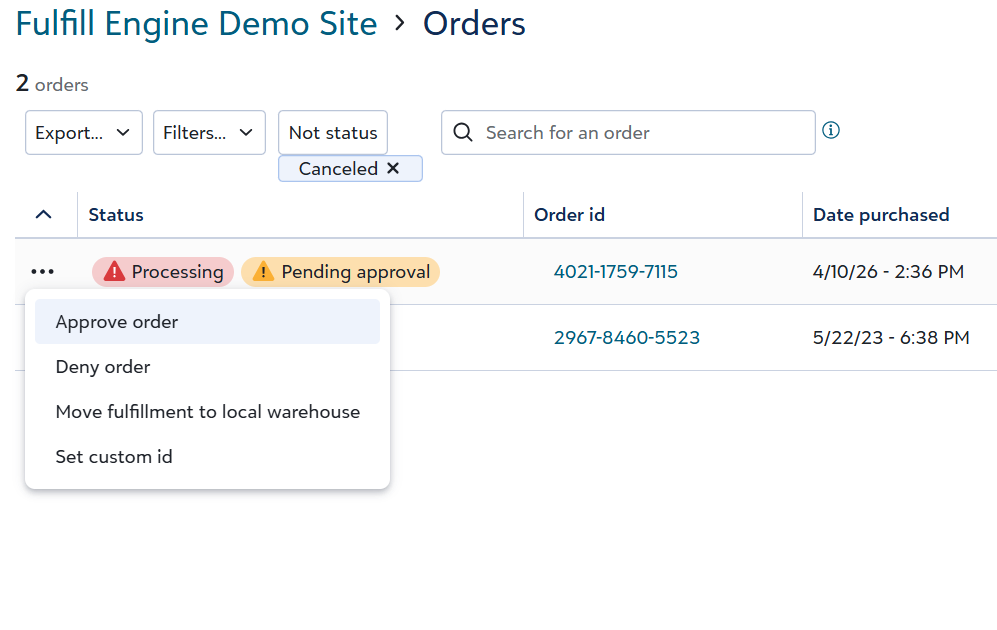
There is a store feature Require order approvals under the Task dropdown on the store. This would require the Account or Store Manager to approve the orders before they would go into production.
This feature is specific to gift codes and discount codes. If the end customer uses a payment method outside of a gift or discount code, it will bypass this feature and the requirement for order approval.
Revoking a Gift Code
You have the option to revoke a gift code, or gift card, that is still in "Pending" status. To do this, navigate to your Gifts tile and select the gift code(s) you are wanting to revoke. To easily locate a gift code, use the search option to find the Recipient name, Recipient email address, or Redemption token.
Once selected, an option to Revoke gift will be available at the bottom of the page.
Any gift codes that are Partially redeemed or Redeemed are not eligible to be revoked.
Adjusting a Gift Code Balance
Navigate to your Gifts tile and select the gift code(s) you are wanting to adjust. Once selected, an option to Adjust balance will be available at the bottom of the page.
Disabling a Discount Code
Gift codes are unique as they do not have a set limit as a gift code would. This means that you may want to have a set amount of time you are willing to have the discount code available.
To disable a discount code, navigate to your Discount codes tile and select the discount code you are wanting to disable. Select the three dot dropdown to the left of the code and select Disable.
Point Stores
You have the option to run a store with points instead of a dollar amount. In this case within the store under Tasks > Edit store features, you will need to select "Is points store."
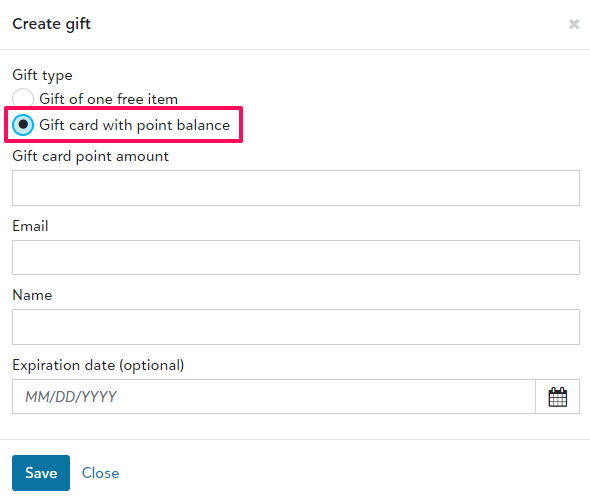
When adding a gift, you will select Gift card with point balance. Once saved, it will send a unique redemption token to the recipient.
Every $1.00 is equal to 1 point.
If the price sheet assigned to the account shows charges for 2XL and above, additional points will be required. This can be bypassed on the Store level as a feature flag under the Tasks drop down > Edit store features > Disable customer size surcharges.
View Reporting
Your can view gift card balances on a store level within the Gifts tile used to create the gift cards. You are able to filter by status, type, or date created and export the view.
As an administrator of a Sales Portal, you can view Gift balances within the Sales tab > Gift balances on the right hand side under Related links. This will give you insight into gift codes issued across all stores within your Sales Portal.
STAHLS' Fulfill Engine keeps a record of all personal data such as name and email tied to a gift card for 18 months.