If you are a Decorator Pro, you are able to easily toggle between the Sales Portal and Fulfillment Dashboards.
You will select Sales at the top of your navigation bar to go from the Fulfillment Dashboard to your Sales Portal Dashboard.
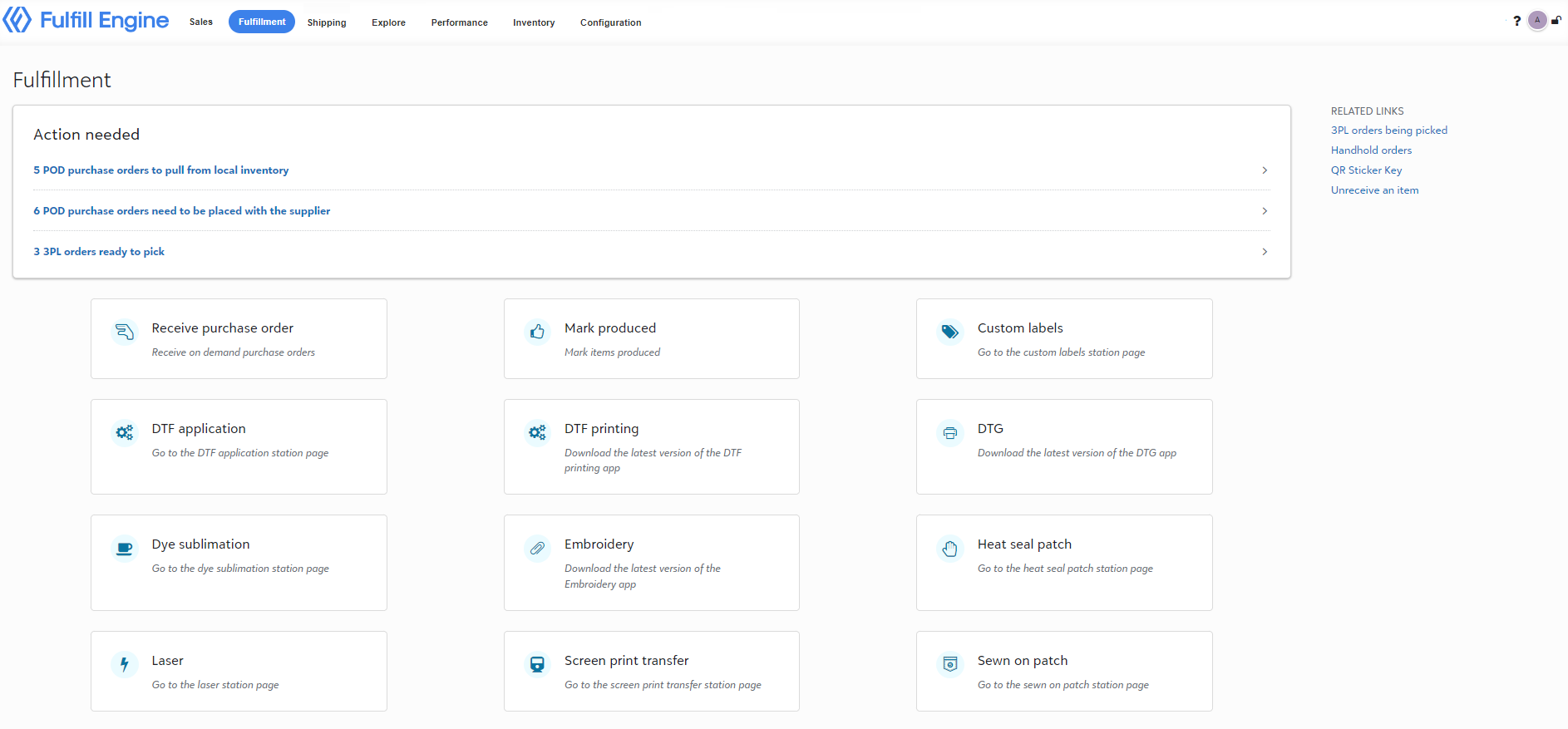
Action Needed: If there is action required on your part for the order to move forward, it will show here. This would be things such as;
- POD purchase orders to pull from local inventory
- POD purchase orders needed to be manually placed with a supplier
- Internal transfer jobs ready to be printed (if doing in-house DTF transfer printing)
- Bulk decoration jobs ready to be printed
- Bins ready to be shipped
- 3PL orders ready to pick
Receive purchase order: These are orders received from the suppliers. Upon arrival, the production team member will key in the PO from the shipment to print the production stickers that will allow you to track the order progress.
Mark produced: This is your shipping station. Once an item has been competed, you will scan the QR code here. The system will then direct you to put the item in a bin, if it is apart of a multipiece order, or it will generate a shipping label.
Decoration stations: This section is set up for different decoration stations throughout your warehouse.
On the right hand side of your Fulfillment page you will see Related links.
3PL orders being picked: When an order from Picklist is being worked on, it will go into this section. This ensures efforts are not duplicated. It shows what is actively being worked on.
Batches: This serves as a quick reference point to view open blank orders.
Handhold orders: This title will flag high priority orders. These are commonly reprints, samples, or orders with special instructions.
View how to flag an order as a handhold here.
QR label key: This is a quick reference sheet for the internal codes that will be listed in the QR stickers.
Unreceive an items: Manually un-receive order items that have been lost or damaged within production.
View more about that process here.
At the top of your navigation bar, you will also see Explore, Performance, and Inventory.
Explore: This is the administration portion of your Fulfillment dashboard. This is where you manage things such as;
- Unreceived reports
- Shipping bins in use
- Items pending arrival
- Orders awaiting inventory
Performance: This portion allows you to track your overall production performance, including turn times which can be set on an account level.
Inventory: Manage blank and store pick-and-pack inventory including generating POs for upcoming stock, and setting notifications when stock is low.