Fulfill Engine is providing the art files for you to import into your print que.
What You Need
- Standard DTF equipment
- Computer Terminal (Windows required)
- 2D QR Code Scanner - recommendation
- You will need one QR code scanner per decoration station
- Shelving unit
- Recommended for holding batched transfer bins
- Film Transfer Organizer - link to purchase
- Table (optional)
Installing the Application
From the Fulfillment tab within your Warehouse Dashboard you will select the DTF Printing tile. This will download the Fulfill Engine installer. Run the installer and choose to install the "DTF Printing App."
Setting your Hot Folder
You will need to set the location in which Fulfill Engine will store art files that need to be printed. From within the application, you will go to File (on the top left corner) > Settings > Edit settings > Set your hot folder location.
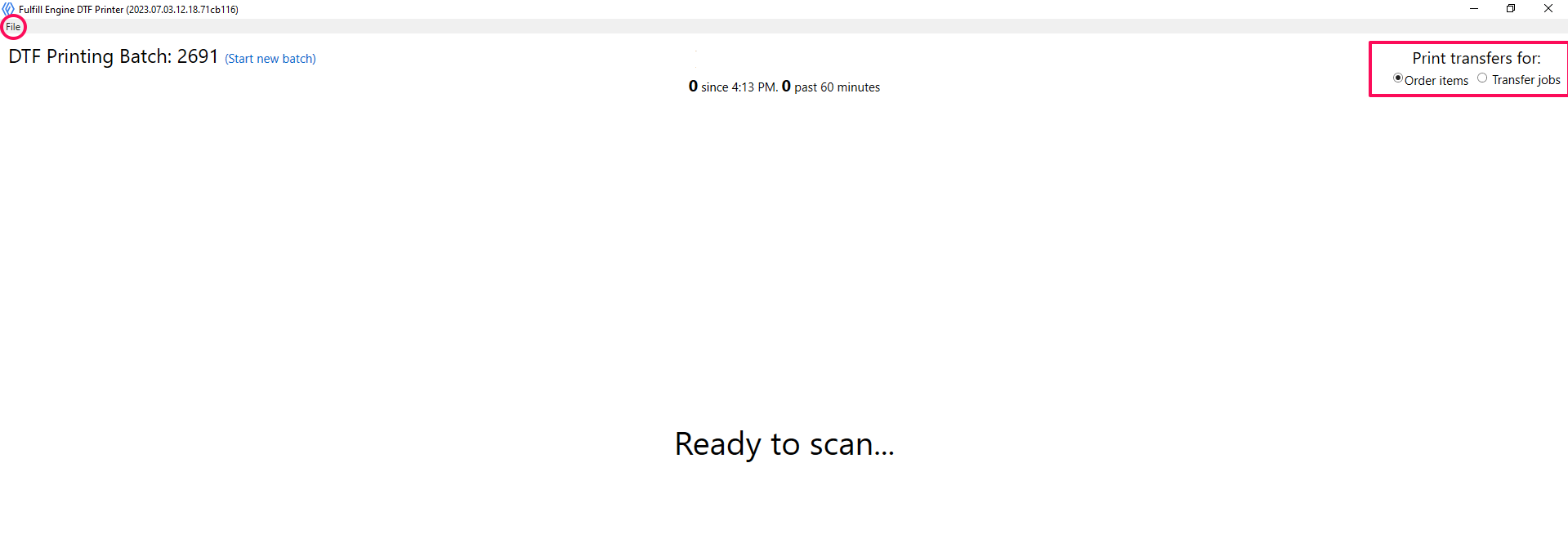
Order items vs Transfer Jobs
You will see on the right hand corner, there are two options for printing transfers (outlined in a pink box above).
When you select to Order items you are setting the terminal up to scan QR codes for multiple items into a batch for production. You are able to control the number of items within a batch.
This is commonly used when you need to quickly reprint transfers.
Transfer jobs is the recommended to use for printing transfers! In this case, the system has already batched items for you to produce the transfers ahead of the items arriving into production.
You are able to connect the transfers to the batch within the warehouse.
