As the Sales Portal, you will control the terms in which funds are disbursed and/or your accounts are invoiced. You have the ability to set agreements on an account or store level.
White-Label Stores
You would invoice any accounts that you have pre-established terms with. If a white-label store has orders that are both on terms as well as receive a profit, you would either invoice or disburse the difference.
For example, if the store is enabled for gift cards and makes $100 in profit, but they owe you $150 for the use of a gift card, you would invoice $50 and the store would show within Pending charges instead of Pending disbursement.
From your Sales Portal, you will go into the Stores tile. Here you will see tabs for Pending charges and Pending disbursement.

This will list, by white-label store, the breakdown of what is owed to your customer and, if applicable, what you are owed.
Statements
Streamline invoicing for white-label stores with the ease of generating statements!
Within your Pending charges and Pending disbursement views, you are able to select the dropdown on a store and view a statement.

You will be prompted to select a date range at which point a detailed view will show for all shipped orders within that timeframe and correlating costs.
Once generated, select to download a PDF view to send to your customer, or keep for your records. 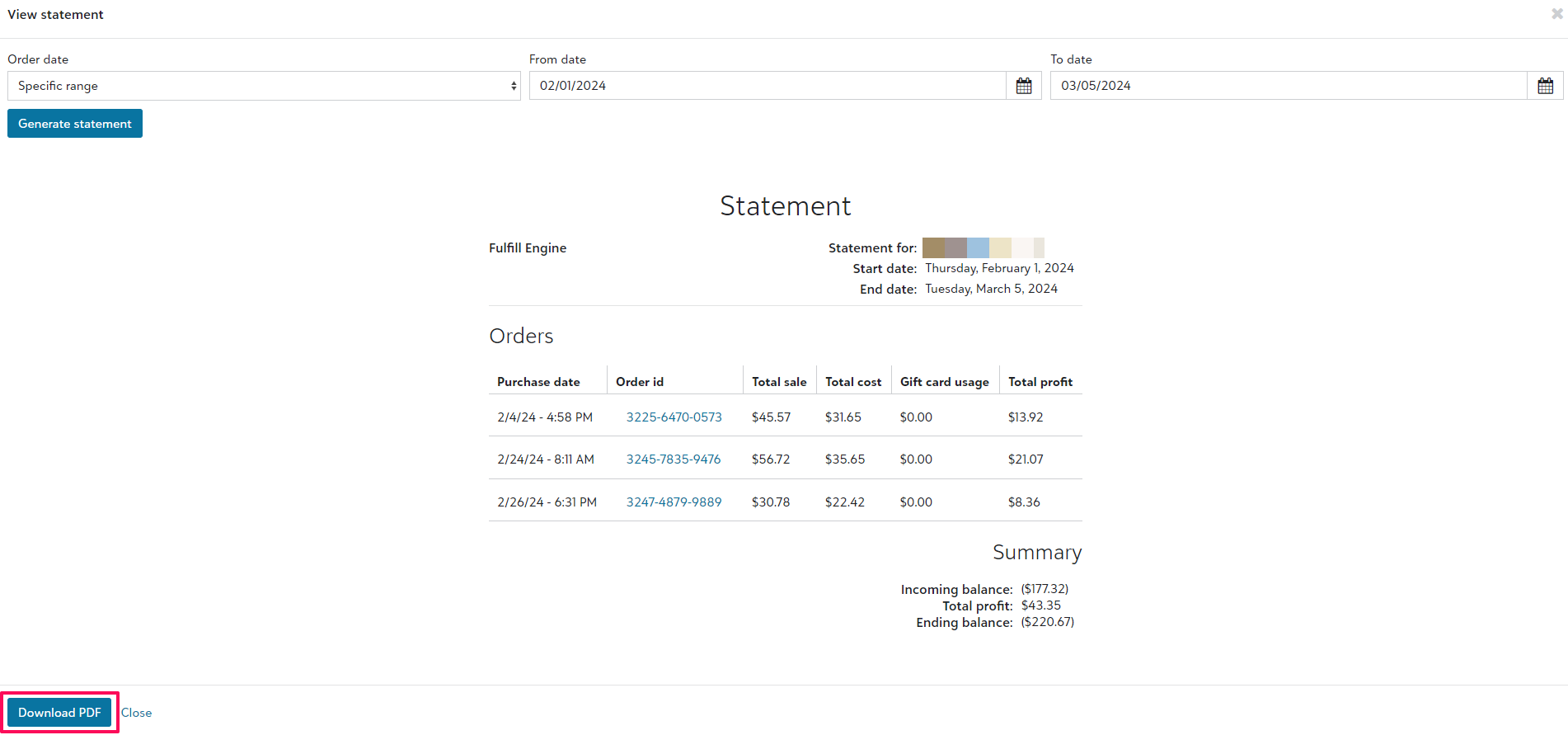
Disbursements
When the white-label store was created, your customer should have set up their disbursement address under Account configuration. This will allow you to mail a check. Depending on your setup, you may also offer your customers disbursements via ACH. At this time, ACH information is not housed on the store level, and you will need to work with your customer to retrieve that information.
Once you have processed those funds, you are able to adjust the amount shown on the store by selecting the dropdown to the left of the store on the Pending disbursement tab and selecting Log pending disbursement.

This will prompt you to the store page and input the amount that has been paid out. In addition, you have an option to include a note. Once saved, the funds will be adjusted on the store's homepage and reflect as a line item within View store log within Store configuration.

Processing Payment
Payment processing is done outside of Fulfill Engine.
Once payment has been received, you are able to adjust the store's balance by going to the Pending charges tab and selecting Log pending charges within the dropdown to the left of the listed store. This will prompt you to the store page and input the amount that has been paid.

Shopify, Order-Now, API, Order Desk
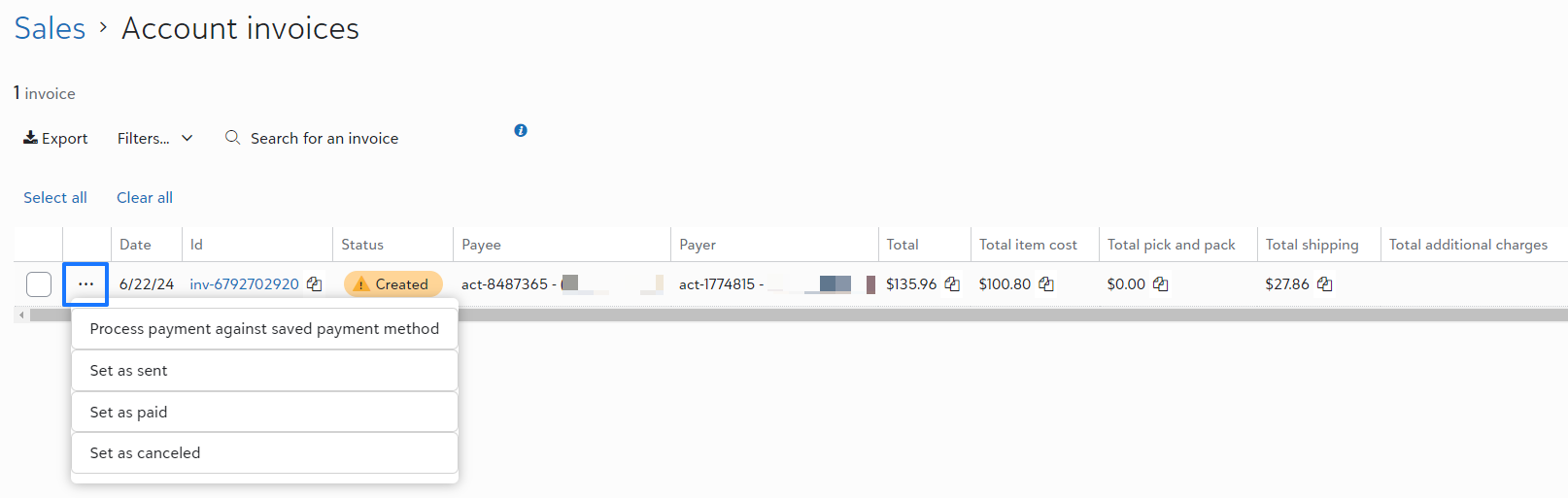
Any orders that originated outside of a White-Label store will have generated invoices shown under Account invoices within the Sales Portal.
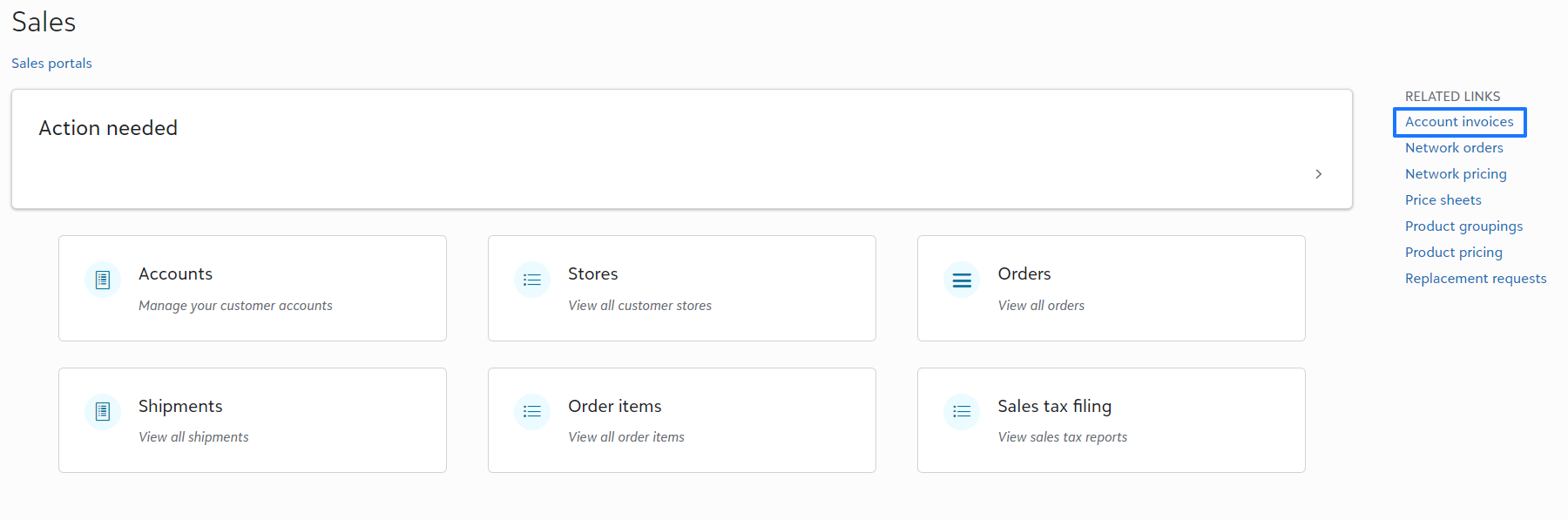
By selecting the invoice link for the order, you will see a breakdown of all charges within that invoice including invoice amount, shipping cost, and pick and pack charges if applicable.
Your Account will also have this view on their Account Dashboard under Configuration > Invoices.


The process in which you collect payment is at your discretion. Many Fulfill Engine Partners use their Stripe account since it is already set up for white-label stores and collect payment on a weekly basis.
Under the account Invoice, you will have the option to automatically charge the card on file with the account for the invoiced amount, as well as mark the status of the order as sent, paid, or canceled.
To use the automatic charge option, have your Accounts set up a payment on file under their Configuration > Payments and disbursements.
There will be a payment processing fee on any invoices ran through Stripe, including those processed with the payment method on file.
Fulfill Engine also offers an integration with QuickBooks for Account invoices! Learn more here.
How can I see an accounting breakdown for all orders submitted through my Sales Portal?
Within your Sales Portal under Orders, you have the option to "Export accounting details" under your Export dropdown. This will give you the same detailed order breakdown, but on your Sales Portal as a whole vs a unique store.