In order to create a store for your customer, you will need to first establish an account for them within your Sales Portal. If you have not already done so, you are able to walk-through that process here.
Creating white-label stores for your customer base is a breeze.
To create a white-label store, you will go to your customer's Account page from your Sales Portal, then select Create a store.
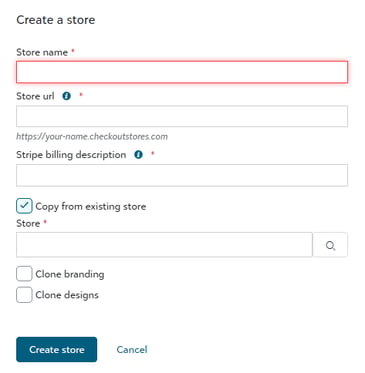
To create the store, you will be prompted to input the store's Name, URL, and Stripe billing description. A Stripe billing Description is an identifying text that will show on the end customer's bank statement.
The above details are able to be edited from the Store's task dropdown at any time.
For Decorator Pro, you can customize fulfillment rules by accessing the Tasks dropdown menu. By choosing the option to Set fulfillment routing rules for store, you can decide whether all orders from that store should be fulfilled in-house or through the Network.
If nothing is set, the sourcing rules will automatically default to what was established within your configuration.
Now you are ready to start building products!
Duplicating a White-Label Store
To create a white-label store, you will go to your customer's Account page from your Sales Portal, then select Create a store.
If you are wanting to duplicate an existing live store, you will select Copy from existing store when building the new one.
When you do this, all products and categories are duplicated. There is also an option to Clone the store's branding. You will just need to add art!