Inventory is a feature supported for Decorator Pro producing volume in house or through the Network for those on the Discount Tier 1 or Discount Tier 2 plan.
A 3PL product is a non-on-demand item that your accounts will be providing to your warehouse for inclusion to offer on their white-label store. Examples would be things such as pre-decorated apparel or hardgoods such as a keychain.
If you offer 3PL inventory to your accounts, it should be their responsibility to manage inventory properly, as they will have visibility within their store's homepage. Learn about managing inventory here.
Let's walk-through how you can create 3PL items!
Adding 3PL items is an administration feature only. Once you have approved to warehouse 3PL items for your customer, you will create the item within their store for them to send inventory through purchase orders.
Before you start, you will need to have the 3PL flag turned on for the store. To do this, you will go to Task dropdown on the store's homepage and select Edit store features. Then ensure Allow 3PL is selected and save.
To create a 3PL item, you will need to be on the store's homepage under Products.
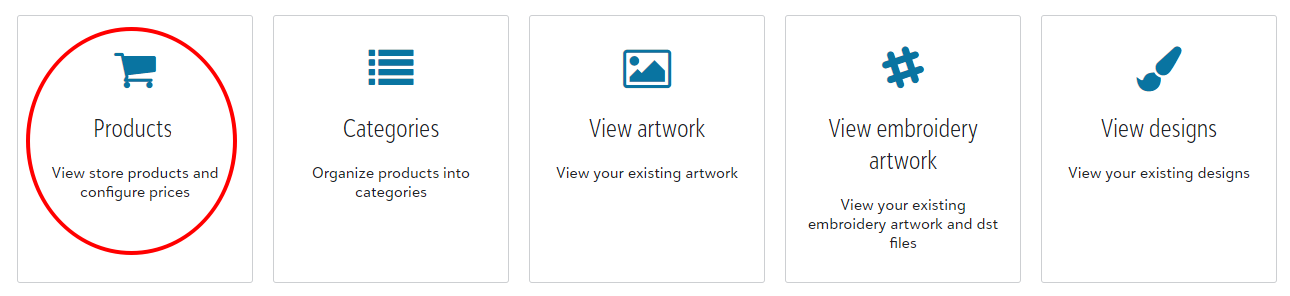
Once within Products, you will select to +Add located to the far left of the header bar > 3PL product at which point you will name the product > Add Product.
This will prompt you to the product page for this item where you will input the variance details.
For example, if your customer offers multiple keychains on their website, the 3PL item would be Keychain, with the SKUs detailing each product.
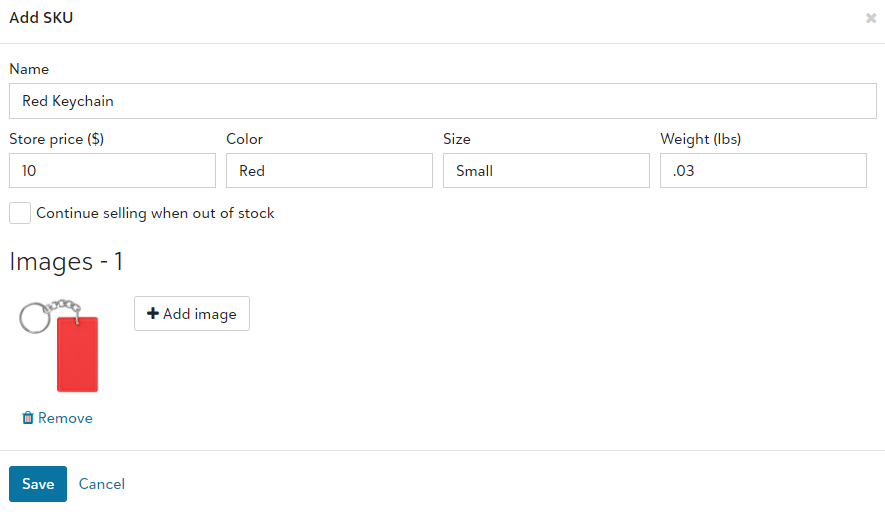
Once a 3PL SKU has been added, your customer is able to submit Purchase Orders into the system to generate inventory. Follow that process here!