The bulk decoration workflow enables an efficient way to move an order containing a higher number of items with the same design through fulfillment by creating a bulk decoration job.
This workflow is enabled by default for all screen printing orders which can be placed through the Order Now portal within an account. Bulk DTF, DTG, and Embroidery can be enabled within your Configuration > Fulfillment. 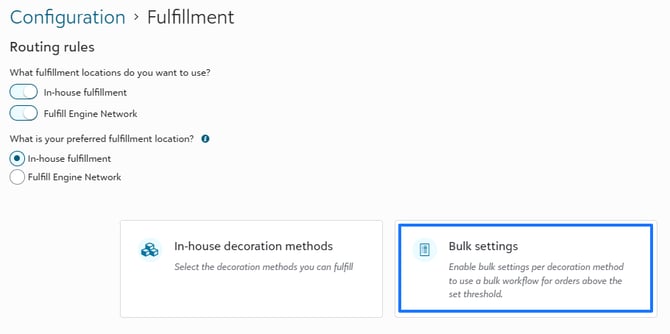
Upon submission of an order, it will enter a batch for sourcing blanks just as on-demand orders do. However, when the batch closes, it will be assigned its own PO and will not be grouped with on-demand orders.
Bulk Order Job View
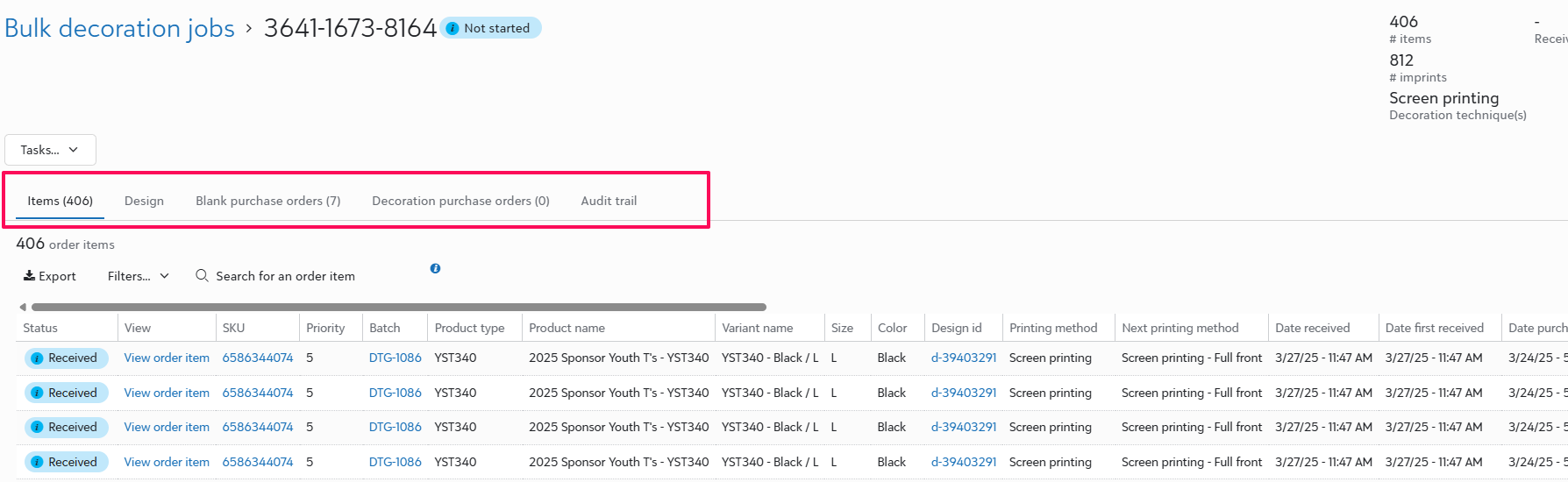
You have visibility into as bulk orders under Explore > Bulk decoration jobs. Within a job, you have various tabs summarizing the details of the bulk decoration job including an items list, the design information, and associated purchase orders.
Screen Print Artwork
When a batch closes, and POs are generated, if you have any screen print orders, you will receive the prompt within your Fulfillment view under Action Needed. The starting point on the order will be "screen print jobs need artwork."

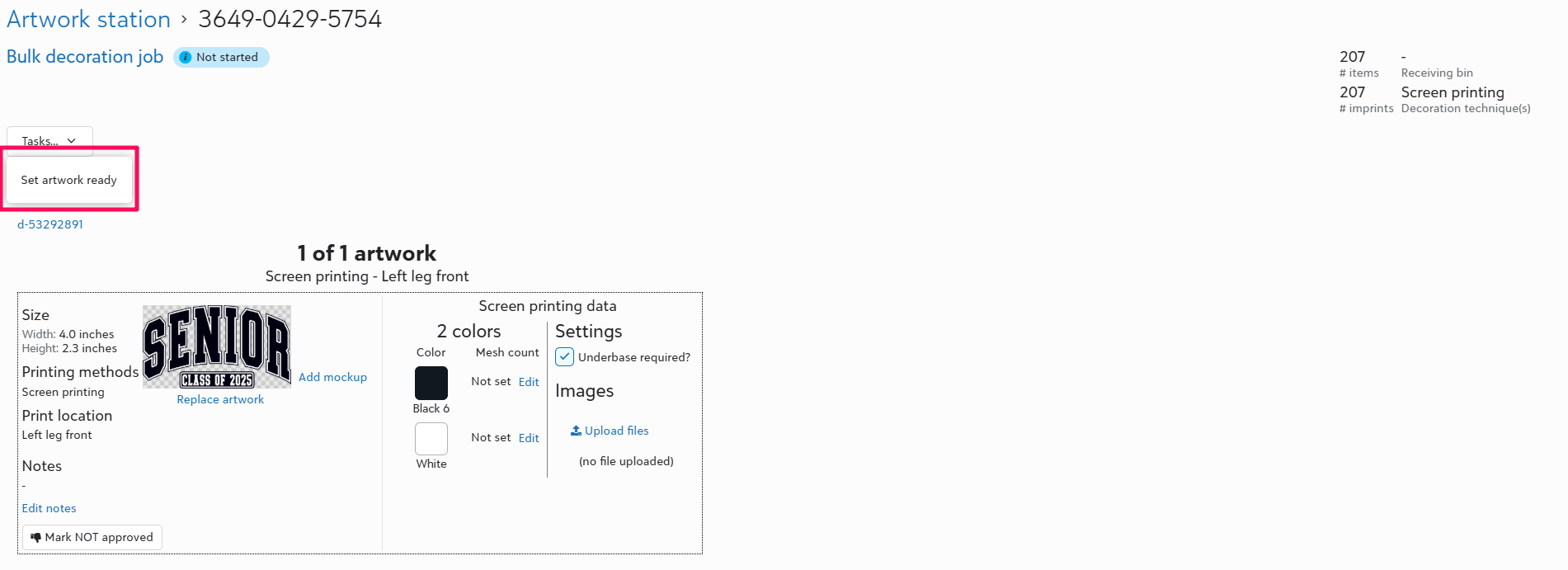
By selecting the action, you will obtain the files needed to start preparing the artwork for production. There are no particular requirements concerning the order flow; rather, we will offer prompts and show the status of a bulk job based on what you have indicated as completed. The steps we show are;
- Need artwork
- Need screens
- Need ink
- Ready to be staged for production
You will use the Task dropdown to mark something as completed.
Receiving
We recommend having a standard printer at receiving for job sheets.
When the order is being obtained from multiple locations, you will get a notification to store the garments in a bin until all items are gathered. For convenience, you have the choice to print a sheet that displays the count by box.
This is within the job view > Download receiving stickers. The number of boxes would determine the number of stickers needed.
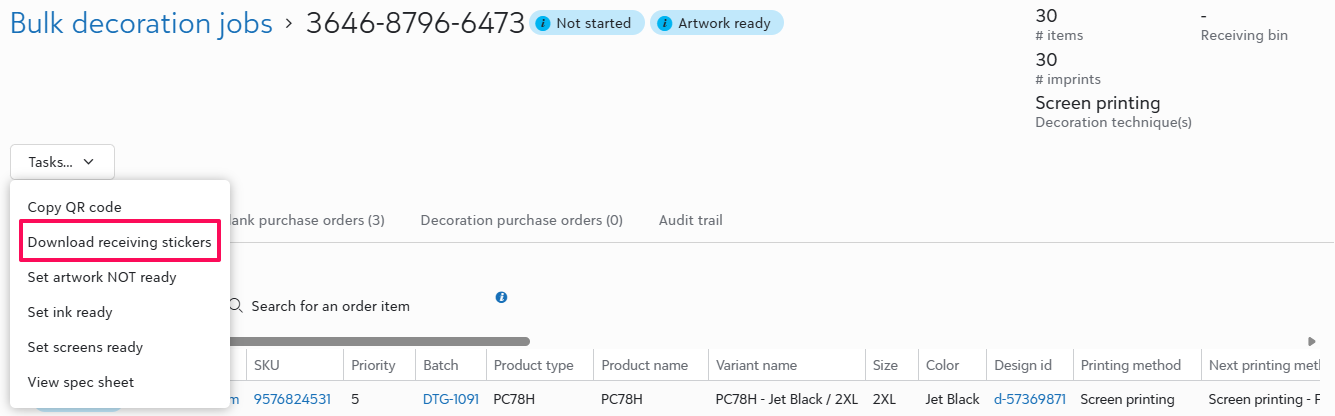
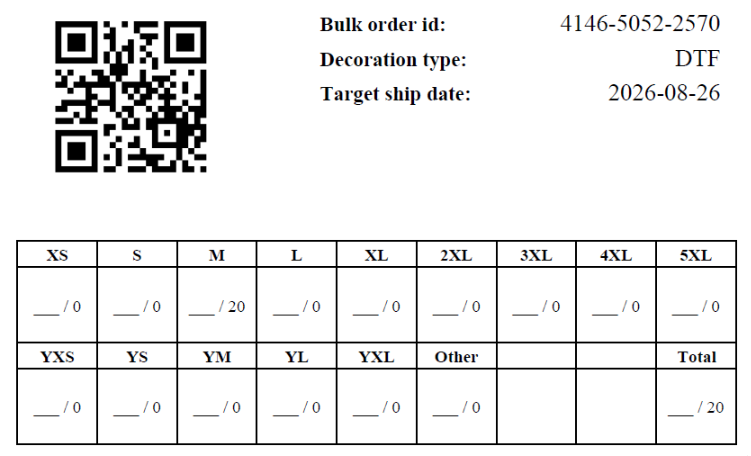
The receiving sticker will be affixed directly to the garment box. It will display the order number along with a QR code for the order.
This provides you with immediate insight into the contents of the box and the associated order.
Once all items have been received, the system will automatically download the spec or job sheet which will live with the order.
You have the option to manually download this at any time.
Production
The system will prompt the spec sheet once the bulk decoration job's last purchase order has been received. You can also manually download it from the bulk decoration job page by clicking Tasks > View spec sheet.
.png?width=670&height=293&name=image%20(6).png)
Screen Printing
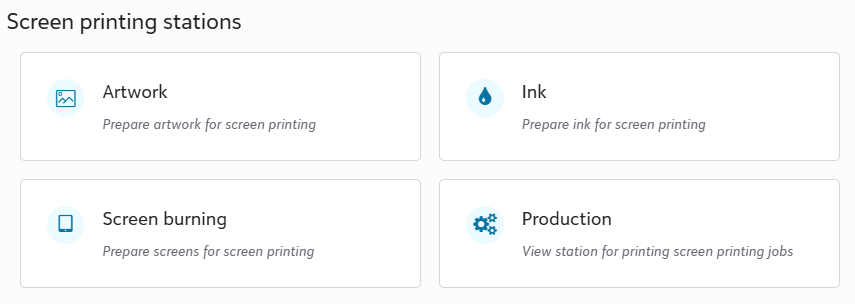
The screen printing stations found in the Screen printing app under your Fulfillment tab provide insight into the current stage of each bulk order.
Other Decoration Methods
Other decoration methods will use their respective apps or station pages to facilitate production. The primary difference between the bulk workflow and the standard POD workflow for production is that only one sticker will need to be scanned per decoration job in the bulk workflow.
Shipping
The shipping process for bulk decoration jobs mirrors that of on-demand. You will scan the QR code, confirm the garment count, artwork, and quality. Once passed QC, a shipping label will be generated or binned until any remaining items are completed.
Within the QC step, you do have the option to fail only certain items and prints within the bulk job (with the exception of screen printing). Any failed items will be reordered appropriately according to the failure reasons. These items, once received, will run through the fulfillment process as POD orders until they get to the shipping step where they will meet back up with the rest of the bulk job.